
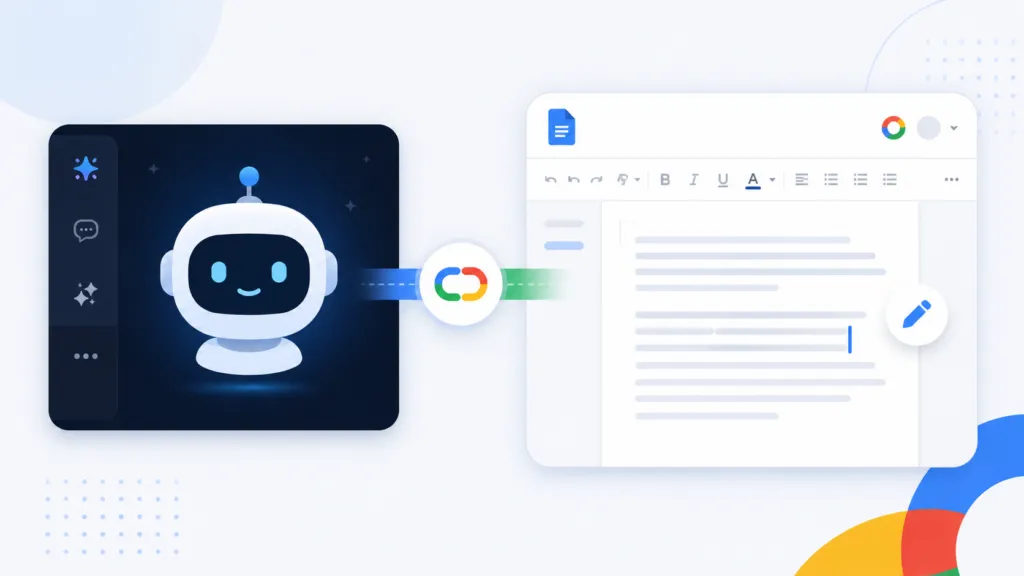
No AI assistant can edit an existing Google Doc out of the box. Claude, ChatGPT, and Grok can all read a Doc and draft you a new one. None of them can go back and change a file that already exists.
To get write access, you install a small bridge that talks to the Google Docs API on your behalf. That setup takes about 15 minutes.
At TJ Digital we run AI search optimization across roughly 40 to 50 client campaigns. Almost every piece of client knowledge we work from lives in a Google Doc. We hit this wall every single day.
Table of Contents
ToggleCan Claude or ChatGPT Edit an Existing Google Doc?
No. Both tools ship with Google Drive connectors, and both of those connectors are read-only.
Claude’s Google Drive connector pulls data in and can’t push changes back. Grok works the same way.
ChatGPT’s Drive integration reads your files and produces output based on them. It can’t edit documents, update spreadsheets, or add new files to your Drive.
In practice that means copy and paste. You attach the Doc, the AI reads it, and then you manually move the result back into Google.
For one document that’s mildly annoying. For a company that keeps its real knowledge in Drive, that manual step runs dozens of times a week.
@tjrobertson52 How to get AI to edit Google Docs. Claude can read them but not write to them. Lucia built the fix, and it’s free. https://github.com/TJ-Digital-LLC/google-bridge-public #ClaudeAI #GoogleDocs #MCP #AITools
♬ original sound – TJ Robertson – TJ Robertson
What Can the Google Drive Connector Actually Do?
The built-in connector is a reading tool, and it’s very good at that job. It pulls the current version of a file into the conversation as context.
The native connectors can:
- Read the contents of Docs, Sheets, and Slides you have access to
- Search your Drive for files by name or content
- Use those files as reference material for whatever you ask next
- Pick up edits your team made in Drive on the next prompt
They can’t:
- Edit text inside an existing Doc
- Update cells in an existing Sheet
- Save a new file into your Drive
I waited about a year for Google, Anthropic, or OpenAI to close that gap. None of them did.
How Do You Give AI Write Access to Google Docs?
You install an MCP server. MCP stands for Model Context Protocol, and it’s the standard that lets an AI call tools on outside services.
A Google Docs MCP server sits between your AI and Google’s API. Once it’s running, your assistant gets real tools with names like insertText, appendText, and modifyText. It can open a Doc you already have and change specific parts of it.
Our consultant Lucia built one of these for our agency. After using it for a while, we decided there was no reason to keep it to ourselves.
So we published it as a free public GitHub repo [ADD REPO LINK BEFORE PUBLISHING]. The setup is documented step by step in the README.
The install works the same way for most of these servers:
- Create a Google Cloud project and generate OAuth credentials
- Clone the repository to your machine
- Install the dependencies with npm install
- Build the server with npm run build
- Run the server once to authorize your Google account
- Add the server path to your AI client’s config file
If your company runs Google Workspace with an admin, you may also need that admin to trust the app in the security console. Google says those policy changes can take around 15 minutes to propagate.
How Long Does It Take to Set Up?
Budget 15 minutes. It’s less than that if you point Claude at the repo and let it run the setup for you. That’s what I’d recommend to anyone who isn’t comfortable in a terminal.
The Google Workspace CLI route lands in the same range. One published walkthrough reported ten minutes from install to working setup, including authentication.
The configuration is the only part that takes real attention. Everything after that is your AI doing the work.
Should You Use an MCP Server or the Google Workspace CLI?
For most small and medium-sized businesses, the MCP server is the right call. It handles the one job you actually need, which is changing a document that already exists. Nobody on your team has to learn a command line.
There are three realistic options right now, and they solve different problems.
| Method | What it does | Setup time | Best for |
| Built-in Drive connector | Reads Drive files as context | A few clicks | Referencing docs you don’t need changed |
| Google Docs MCP server | Reads and edits existing Docs and Sheets | About 15 minutes | Teams whose working documents live in Google Docs |
| Google Workspace CLI | Command-line access across Gmail, Drive, Docs, Sheets, and Calendar | 10 to 15 minutes | Agent workflows already running in a terminal |
The CLI is the better pick if your team already works in a terminal with an agent like Claude Code. It reaches Gmail and Calendar as well, so it covers more ground.
How Do You Keep Your Company Docs and Your AI in Sync?
Keep one source of truth in Google Drive and connect it to your AI project. Claude Projects can link a Google Doc directly, and edits your team makes in Drive show up the next time anyone prompts that project.
That pattern alone removes most of the copy-paste problem. Your team edits the shared Doc the way they always have, and every project using that file sees the current version.
Write access closes the other half of the loop. The AI can update the document itself when that’s the job, so the file stays current without a human moving text around.
Why Does Write Access Change How You Work?
Your AI can update the documents your team actually works from. That matters more as more of your business gets written down.
I tell every business owner the same thing. Start collecting and organizing your company’s knowledge today.
The businesses that have their operations documented are the ones getting real value out of these tools. Our own version of that is the structured knowledge base we build for every client.
Write access is what keeps that knowledge base current without anyone maintaining it by hand.
What Else Should You Know Before Giving AI Access to Your Drive?
Scope the permissions narrowly and start with one document. Here are the questions we get asked most often.
Can ChatGPT create a new Google Doc in my Drive?
Not through the native Drive integration. ChatGPT can draft the document for you, but saving it into your Drive requires an MCP server or a similar tool with write permissions.
Do I need to know how to code to set this up?
No. The repository documentation covers every command, and you can hand the whole setup to Claude and have it run the steps for you.
Does this work with Google Sheets too?
Yes. Most Google Docs MCP servers cover Sheets, Drive, Gmail, and Calendar as well, because they all run on the same Google APIs.
Is it safe to give AI write access to my Drive?
You’re granting the same access you’d grant a new employee, so scope it carefully. Use the narrowest OAuth permissions the task requires and review what the assistant changed before you trust it with anything important.
What Should You Do Next?
Install the server, point it at one document you edit often, and see how much of your week that gives back. Fifteen minutes is a small price for removing a daily annoyance.
We plan to keep building tools like this and sharing them, so keep an eye out for what comes next. Our guide on becoming an AI power user covers the bigger picture. Reach out through our contact page and we’ll help you get your business documented properly.