
If you have a website that’s at least a year old and you have over 100 pages, you are almost certainly sitting on an SEO gold mine. This is the first thing we do when we start working with a new client.
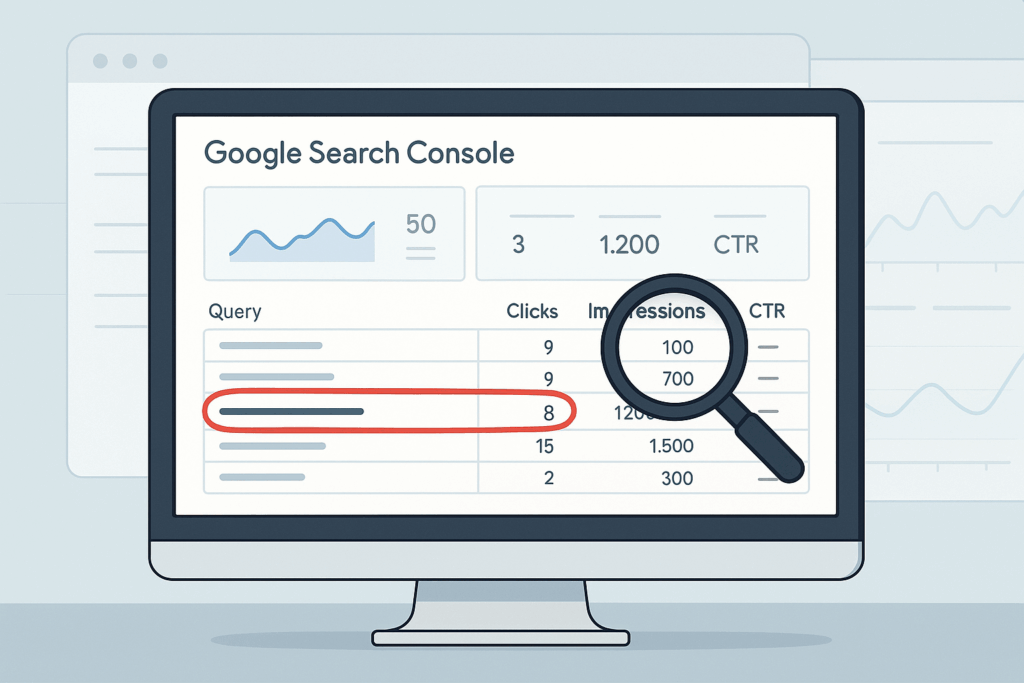
The strategy is simple. Use Google Search Console to find pages that are already getting impressions but not many clicks. Then refresh those pages with better formatting, updated information, and optimized heading tags. Keep the same URL. Submit the page to Google Search Console. Check back in three weeks.
Most businesses see meaningful traffic increases within 2-4 weeks using this approach. You’re not building new pages from scratch. You’re just improving what’s already working.
Table of Contents
ToggleWhat is Google Search Console?
Google Search Console is a free tool provided by Google. It shows you what terms you’re showing up for and which pages people clicked on.
More importantly, it shows you what terms people are typing into Google before your website shows up in search results, whether or not they click on it. These are called impressions.
@tjrobertson52 Your old website pages are an SEO gold mine 💰 Here’s how to find hidden traffic in Google Search Console #SEO #GoogleSearchConsole #WebsiteTraffic
♬ original sound – TJ Robertson – TJ Robertson
Understanding Impressions
An impression is counted each time your page appears on a Google search results page, even if no one clicks it. It does not require a click. Every time a user’s search results page displays your link, Google Search Console counts an impression.
For example, a page ranking 10th on page one still earns an impression each time someone views that results page. The page is visible. It’s just not getting clicked.
I like to think of impressions as opportunities. It might not be actual traffic to your website, but it’s showing you that you could get traffic from those terms if you were ranking a little bit better.
A page with many impressions but low clicks simply needs better optimization.
How to Find High-Impression, Low-Click Keywords
Here’s the exact process we use:
- Log in to Google Search Console and select your property
- Go to “Performance” and choose the Queries tab
- Sort the table by the Impressions column (highest first)
- Look for queries with many impressions but few clicks
You can filter by Click-Through Rate if you want. Look for queries with CTR below 1%. Or just scan the Clicks column beside high-impression terms.
This shows you “almost-there” keywords. Terms where your pages are visible but not compelling enough to click.
For each of those terms, if it’s relevant to your business, determine if you’re already using it in an existing heading tag. If not, simply adding it to an existing heading or the H1 of a new page is probably enough to start getting traffic.
If you are already using those terms in an existing heading, try refreshing that page.
How to Refresh Old Pages
When you refresh a page, you’re improving the content in place. You’re not creating something new. You’re making what exists better.
Optimize Your Heading Tags
Use clear, descriptive H1, H2, and H3 headings to break up text. Aim for short paragraphs (2-3 sentences).
Break long paragraphs under relevant subheadings. This makes the page easier to scan for both readers and Google.
Use Formatting
Convert any run-on text into bullet points or numbered lists. Use tables when making comparisons.
Bullet lists and tables improve readability. They also help Google parse the content structure.
Add Data Points, Facts, and Statistics
Update facts, statistics, and examples with current information. Replace outdated figures or broken links with fresh data and reputable sources.
If you cited statistics from 2018, find a 2024 source instead. Adding recent case studies or screenshots makes the content timely.
Data matters. “You should change your filters frequently” isn’t nearly as helpful as “You should change your filters every 3 months.”
Add Visuals
Add relevant images, charts, or short videos to break up text and illustrate key points. Use descriptive alt text.
If a new tool or interface appeared since your post was published, include a screenshot.
Update Internal Links
Update or add internal links to related, updated content on your site. Make sure any internal links to the page still exist and point to the same URL.
If you need help with this, our page optimization service can handle the technical details.
Add the Current Year to the Title
Change “Ultimate Guide to Topic” to “Ultimate Guide to Topic (2025)”. You can update this in your CMS by editing the title or SEO title field.
Including the year in the HTML title can boost rankings by catching attention and implying up-to-date content.
But only do this if the content itself truly reflects current information. Don’t just add “2025” as a gimmick. Make sure the body content is revised and that any points or data justify the new date.
Should You Change the URL?
No. Don’t change the URL.
The safest way to refresh content without losing SEO is to keep the same URL. Keeping the same URL preserves all existing SEO value (backlinks, internal links, and Google’s indexing signals) that the page has accumulated.
Changing the slug requires a 301 redirect to retain equity. It may confuse both users and search engines if not done carefully.
Unless there’s a critical reason (like a complete site restructuring), leave the original URL intact and simply update the page’s content and title.
Submit the Page to Google Search Console
After you refresh a page, you want Google to re-crawl it as soon as possible.
Google Search Console provides a URL Inspection tool for this purpose:
- Open Search Console and click the URL Inspection option (top bar)
- Enter the full URL of your updated page
- The tool will fetch the live page and show its status
- Click “Request Indexing” to notify Google that the page has changed
This prompts Google’s crawlers to revisit your page. There are quotas on how often you can request indexing, and Google still controls timing. But this is the quickest way to flag your updates.
Once submitted, Google will test the URL and queue the page for re-crawl. You can then monitor the Performance report for changes in impressions, clicks, and position over the next few weeks.
How Long Until You See Results?
Check back in three weeks.
After requesting re-indexing, Google’s crawlers may revisit the page within days to weeks. Most SEO practitioners see initial effects within a few weeks.
Ranking and traffic improvements often emerge 2-4 weeks after re-crawl.
Monitor your Google Search Console Performance report periodically after the update. Often, you’ll notice rising impressions first. Clicks and rankings tend to follow.
In some cases, content refreshes can lead to traffic increases within one week. But be patient. A few weeks is more typical.
Why This Strategy Works
A content refresh can yield faster gains than building new pages. You’re working with pages that already have some authority. You’re improving them where they’re weak.
By identifying high-impression pages in Google Search Console, improving them on-page, keeping the same URL, updating titles with the current year, and using the URL Inspection tool to prompt re-indexing, you position your old content to rank better.
This is often one of SEO’s quickest wins.
If you have over 100 pages on your website, you almost certainly have opportunities sitting there right now. Use Google Search Console. Sort by impressions. Find the pages with lots of impressions but few clicks. Refresh them. Submit them to Google. Check back in three weeks.
It works.
Need help optimizing your pages? TJ Digital specializes in AI SEO and content optimization. We’ve been doing this for 15 years, and we know what actually moves the needle.