
If you’re using AI for work, you need to give it context about your business. All the major platforms understand this. ChatGPT, Claude, and Gemini have all made it easy to connect things like Google Drive.
But there’s a problem I keep seeing. At least once a week, someone tells me they’ve connected Google Drive to their AI platform. They’ve given it access to all their call transcripts and documents. Now they can ask questions, produce a strategy, and brainstorm with all that context in mind.
This sounds great. And it is better than no context at all. But as someone who’s been building AI workflows for two years, I see the same mistakes over and over.
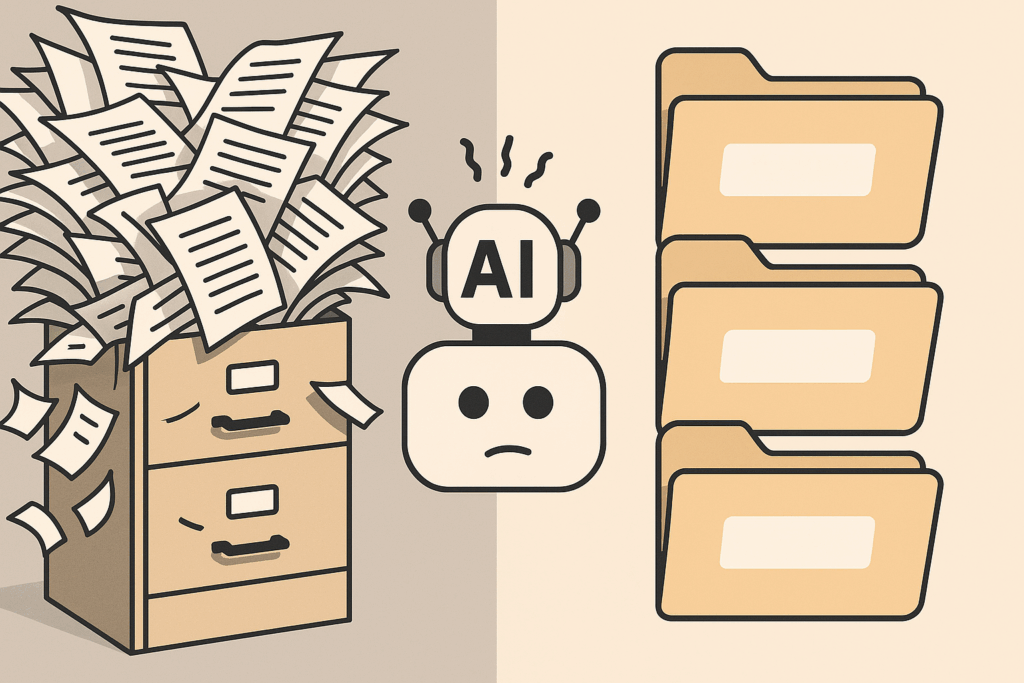
When you give the model hundreds of unstructured documents, you’re leaving it up to the AI to decide what’s relevant for each prompt. Some models handle this better than others. But even the best models will pull in irrelevant context and miss important context.
The fix isn’t complicated. Instead of dumping your entire Drive, create focused projects with curated documents. Label everything clearly. Tell the AI when to use each document. It takes a little time to set up, but the quality difference is hard to exaggerate.
Table of Contents
ToggleWhy Raw Document Access Leads to Bad Answers
Here’s what happens when you connect your full Google Drive to an AI assistant:
The model’s working memory fills up with mixed signals. Research on large language models shows that adding irrelevant text actually lowers performance, even for very large models. In one study, accuracy dropped as context grew if most of that context was unrelated.
This is what some are calling “context rot”. The signal-to-noise ratio collapses. The AI can’t find the needle in the haystack of junk. The answer might be in one of your files, but the model can’t pinpoint what matters.
The result? Vague, inconsistent, or outright wrong answers. The AI seems lazy or confused, but the real problem is that you overloaded it.
@tjrobertson52 What Company Data Should You Share With AI? Connecting Google Drive to ChatGPT sounds great until the model starts pulling random call transcript chatter into your strategy docs. Here’s what actually works 👇 #AI #ChatGPT #ClaudeAI #productivity #AItools
♬ original sound – TJ Robertson – TJ Robertson
The Call Transcript Problem
The biggest issues come from raw call transcripts.
Yes, call transcripts contain useful information. They also contain random conversations about what everyone did over the weekend. Filler words. Small talk. Off-topic remarks. And information that was accurate six months ago but isn’t anymore.
There’s also the content problem. Internal conversations might include things you don’t want showing up in public-facing content. When you dump raw transcripts into an AI, you’re trusting it to filter all of this out. It won’t.
Gemini vs ChatGPT: Does a Bigger Context Window Help?
You might think a larger context window solves this. Gemini 1.5 Pro supports up to 1 million tokens of context, while GPT-4o and Claude max out around 128,000 tokens.
Gemini is the best at handling messy context. ChatGPT is the worst. But even Gemini will make mistakes when you give it hundreds of disorganized documents.
A bigger context window lets the model see more. It doesn’t help the model understand what matters. Both systems need curated, high-signal content. Feeding them messy bulk files without filtering will degrade results regardless of the model you’re using.
The Better Approach: Curated AI Projects
Instead of connecting your entire Drive, set up a project in Claude or a Gem in Gemini. Then take the time to decide what context you actually need the model to have.
Think of it this way: if you wouldn’t hand a colleague a filing cabinet to answer one question, don’t hand it to your AI.
Here’s the process:
1. Group documents by purpose. Create separate projects for different types of work. A project for content creation. A project for strategy. A project for client work. Each project gets only the documents relevant to that specific purpose.
2. Label everything clearly. Name files so the AI can reference them unambiguously. “ClientX-Requirements.pdf” is better than “requirements-final-v2.pdf.”
3. Write clear instructions. Tell the AI when to use each document. For example: “File X contains our meeting notes; refer to it only if the user asks about that specific meeting.” Or: “Use ProductSpecs.pdf only when answering technical questions.”
At TJ Digital, we maintain projects like this for each of our clients. The AI knows everything about the company, talks the way the brand talks, and we use it in essentially everything we create.
How to Handle Meeting Transcripts
For clean documents like video transcripts, you can add them directly to your project. Just provide instructions on how to use them.
For messy documents like call transcripts, there’s a better workflow:
Step 1: Upload the transcript to the AI and prompt it to summarize the conversation into key decisions, action items, and main points.
Step 2: Store only the distilled summary in your project. Replace the raw transcript with the clean version.
The University of British Columbia recommends this approach for turning transcripts into actionable notes. Use AI to filter out the filler. Keep only the essentials.
You can also have the project help with maintenance. Give a new transcript to your AI project and ask it to review the content and consider any existing documents that need to be updated or amended. This keeps your knowledge base current without manual work.
Maintaining Your AI Knowledge Base
Think of your AI project as a living repository. When new documents arrive, add them systematically. Update your master summaries and instructions.
Here’s what ongoing maintenance looks like:
- Import new approved documents regularly
- Have the AI revise summaries when new information comes in
- Prune outdated content
- Let feedback guide adjustments
The key loop is: ingest new documents, then have the AI update the project context. This ensures your answers stay current and accurate over time.
What This Looks Like in Practice
At TJ Digital, we build custom AI projects for every client. The AI has access to everything known about the client, every transcript from our meetings, and everything we’ve created for them.
But we don’t stop there. We create specialized projects for specific tasks:
- One project for writing blog posts in the client’s brand voice
- One for creating web pages using their template
- One for video hooks and scripts
- One for backlink outreach strategies
Each project knows exactly what to reference and what to ignore. The result is content that sounds like it came directly from the business owner, because it’s built on their actual insights rather than generic AI output.
The Bottom Line
Connecting your full Google Drive to AI is convenient. It’s also a shortcut that leads to worse results.
The better approach takes more setup time, but it’s worth it:
- Create focused projects for specific purposes
- Upload only relevant, clearly labeled documents
- Write explicit instructions for when to use each document
- Clean messy content (like call transcripts) before adding it
- Maintain your knowledge base over time
This is how you get AI output that’s actually useful for your business.
Need help building AI workflows that actually work for your brand? Contact TJ Digital to learn how we create custom AI projects that produce consistent, on-brand content.