
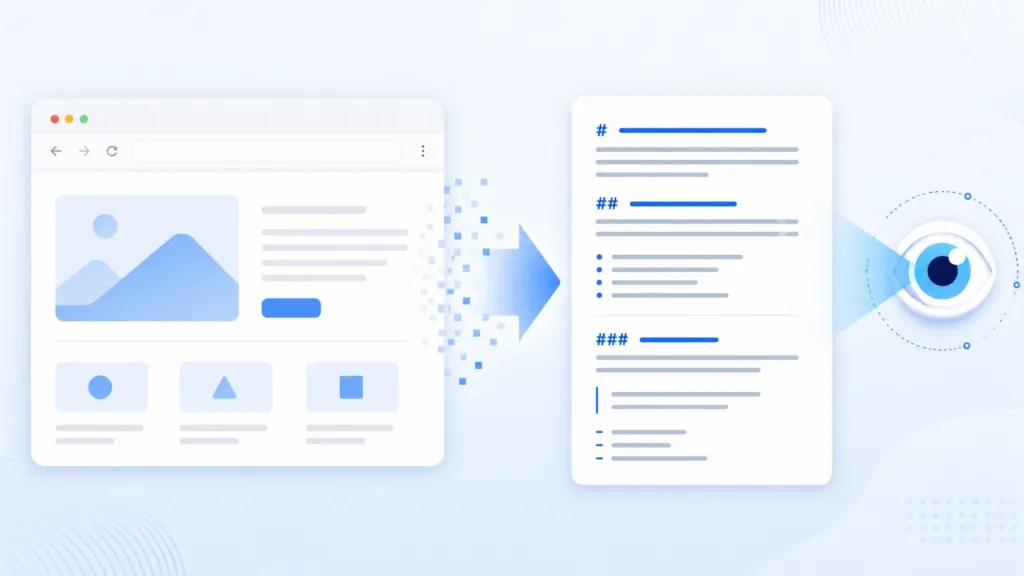
AI reads your website by converting the rendered page into structured Markdown inside the Chrome browser. Chrome’s Page Content Agent walks the page, tags every heading, link, button, and form field with an ID and a set of screen coordinates, then hands that text to the AI model. At TJ Digital, we manage AI search optimization for roughly 40 to 50 client websites and track around 4,000 AI prompts per day across ChatGPT, Google AI Mode, and Perplexity, so we watch this layer closely.
We are moving quickly toward a world where most of the interactions on your website are done by an agent. A person sends the agent, and the agent visits your site on their behalf. How that agent reads your page has become a practical business question.
Table of Contents
ToggleWhat Is Chrome’s Page Content Agent?
The Page Content Agent is the component inside Chromium that takes a live web page and strips it down into clean Markdown for an AI model. Dan Petrovic recently published research where he ran a series of experiments to extract exactly how Google sees a web page. What he documented is the clearest picture we have of what AI actually receives when it looks at your site.
This matters more than it sounds, because almost every AI has access to some version of Chromium. Microsoft Edge runs on Chromium. Headless browsers like Playwright and Puppeteer run on Chromium too.
Chrome holds roughly 70% of global browser usage on its own. Edge adds another 5% to 6% on top of that.
Gemini in Chrome gets this data passed to it directly, but the same extraction can be handed to any large language model. Here’s the thing about that. Once one browser engine solves page extraction this well, and that engine sits underneath most of the AI tooling on the market, every AI ends up reading your website the same way.
@tjrobertson52 How do AI agents see my website? Chrome’s page content agent reads the whole thing, buttons and all, instantly. #AISearch #SEO #AIAgents
♬ original sound – TJ Robertson – TJ Robertson
How Does AI Actually Read a Web Page?
The agent walks the rendered DOM and the accessibility tree, which is the same structure screen readers have used for years. It builds a map of every visible element on the page. Each node gets a unique ID, a label, a type (heading, link, button, image, form control), and its position on screen.
That map is then converted into Markdown with the node references embedded, and the Markdown is what the model sees. So when an AI wants to act, it can say “click node 35, the Submit button,” and the browser translates that back into a real click.
At first this sounds like a simple job. You look at the HTML, pull out the text, and you have your Markdown. It is more complicated than that for three reasons:
- Not everything on the page is in the HTML. Plenty of elements are loaded by JavaScript after the page arrives and never appear in the source.
- Logged-in content is generated on the fly. If the page pulled information from someone’s account, that content exists on screen and nowhere in the raw HTML.
- Form fields hold typed input. Anything a user has entered into a form is part of what’s on screen.
The Page Content Agent captures all of it, because it reads the rendered page rather than the source code.
Why Did AI Stop Reading Websites With Screenshots?
A few months ago, the only way for an AI to understand a web page was to take a screenshot. Then it would scroll or click and take another screenshot. Every one of those images took a couple of seconds to process and burned a large number of tokens.
The structured approach is faster and cheaper by roughly an order of magnitude:
| Screenshot reading | Page Content Agent | |
| Tokens per page | 1,500 to 3,000 | 300 to 800 |
| Time per step | 1.5 to 3 seconds | 0.3 to 0.8 seconds |
| Where the work happens | Sent off-device for vision processing | Entirely in your browser |
| How it finds a button | Estimates coordinates from pixels | Reads the element’s ID and label |
| Typical failure | Coordinate drift, clicks the wrong button | Missing or unlabeled elements |
The most remarkable part is where it runs. Page extraction now happens on your own hardware, almost instantly and essentially for free. That single change is why AI agents got so much better at using websites in such a short window.
It also makes the agents more reliable. A screenshot-based agent looking at two similar buttons has to guess which “Submit” you meant. A structured agent names the element and lets the browser resolve it exactly.
How Do AI Agents Click Buttons and Fill Out Forms?
Every element the agent documents comes with coordinates. Chrome records each element’s x position, y position, width, and height in viewport pixels. The AI knows exactly where your buttons are and can press them without ever looking at the page.
Chrome recognizes forms and form controls as their own element types, so text inputs, dropdowns, and buttons all arrive with their metadata attached.
This is the part most business owners have not registered yet. AI agents can now operate your website. They can fill in your form, click your button, and move through your checkout.
One side effect is worth calling out. Layout shift now has a real consequence for agents, because an element can move between the moment the agent identifies it and the moment it tries to click. Google’s agentic browsing audit checks Cumulative Layout Shift for exactly this reason.
I have said for years that core web vitals almost never explain why a site isn’t ranking, and I still believe that. Agent misclicks are a separate problem with a separate cost.
Can AI Agents See Your Bank Details and Passwords?
They can see whatever is on the page you share with them, which includes content behind a login. Google’s own documentation confirms that Gemini in Chrome collects and processes page content plus the URL from your current tab. Some of that content may not even be visible to you on screen.
Because the Page Content Agent runs on your device, it reads your live screen the same way you do. In his testing, Dan Petrovic was surprised to find it pulling information from a bank account view and from password fields.
Chrome sanitizes that data before it leaves the device. Password and credit card fields are redacted, and embedded third-party content gets flagged or stripped out. Google also recommends running agent tasks in a separate Chrome profile to limit exposure.
For a business owner, the practical takeaway is simple. Anything visible on a tab you hand to an agent is visible to the agent.
How Do You Check What AI Sees on Your Website?
Do this today, because it takes about two minutes.
- Open your website in Chrome.
- Open Gemini in the Chrome side panel.
- Ask it to give you the raw output from its page content agent for this page.
- Read the output and confirm the model understands what you sell, who you serve, and what the page is for.
In my experience it does a good job even on sites that have done nothing to prepare for agents. The extraction is better than most people expect.
Forms are the weak spot. If you have not set up WebMCP, the agent may be able to see your form fields without understanding what they do or what belongs in them.
For a second opinion, run the agentic browsing category in Lighthouse. It ships in the default configuration as of Lighthouse 13.3 and appears automatically in Chrome 150 and later. Google’s agent-ready developer toolkit covers what each audit checks.
What Should You Fix if AI Is Misreading Your Site?
Most of the fixes are things good developers were supposed to be doing anyway:
- Label every interactive element. Buttons, links, and form inputs need a programmatic name. The accessibility tree is the agent’s primary data model, so an unlabeled button is close to invisible.
- Keep the layout stable. Content that jumps around while the page loads can cause an agent to click the wrong thing.
- Annotate your forms with WebMCP. A few attributes tell the agent what your form does and what each field expects.
- Keep important content visible. Machines still have trouble finding information hidden behind tabs and accordions.
This is markup work on top of the site you already have, and it overlaps almost entirely with accessibility work. You do not need a rebuild. Our full checklist to prepare your website for agents goes deeper on each item.
What Does This Mean for Your Business?
The primary reader of your website is becoming a machine that reads it perfectly, quickly, and cheaply. That cuts both ways. The agent will find your pricing, your hours, and your service area with no trouble, and it will also find the page where none of that is clear.
Clarity on the page is now the whole game. If a person cannot tell what you sell from your homepage, an agent has the same problem, and the agent is the one making the shortlist.
Go run the Gemini side panel test on your own site this week. Read what comes back, and fix whatever the model got wrong about your business. Contact TJ Digital to have us run that check for you and put the fixes in place.
What Else Should You Know About How AI Reads Your Website?
Does AI read my website’s HTML or the rendered page?
The rendered page. Chrome’s Page Content Agent extracts from the live DOM and accessibility tree, which means it sees content your raw HTML does not contain.
Do AI agents see content loaded by JavaScript?
Yes. Because the agent snapshots the page after it finishes rendering, JavaScript-generated content such as search results and live dashboards appears in the extraction.
Which browsers use Chrome’s Page Content Agent?
Chromium-based browsers, which covers Chrome, Edge, Brave, Opera, and headless tools like Playwright and Puppeteer. That accounts for the large majority of browser usage worldwide.
Does my website need WebMCP for AI to read it?
No. AI can read your content without it. WebMCP matters for your forms, because it tells an agent what a form does and what each field expects rather than leaving it to guess.