
Want to make your own music video? We captured this whole process, and everything we learned making ours, in one Markdown file you can share with Claude, ChatGPT or Gemini. It’s linked below.
The most reliable way we’ve found to make a music video with AI is to have Claude write code that draws every frame of the video. Before it builds anything, Claude measures the song, finding every beat, drum hit and sung word. Then it takes the timing of every cut, camera move and on-screen lyric from those measurements.
Your job is to direct: you decide what the video shows, and after each draft you tell Claude what to change.
AI video generators make good-looking clips, but you can’t time anything that happens inside a clip, like a character turning or a light switching on, to an exact beat or word. A character can also look different from one clip to the next. Code avoids both problems: it can time anything in the picture to a measured beat or word, and it draws the character in every shot from one shared definition.
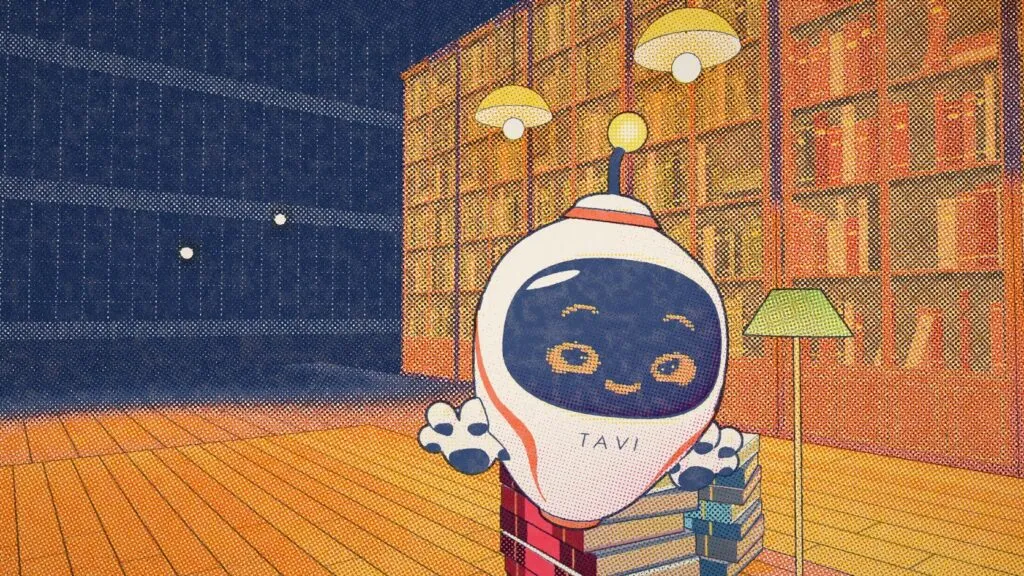
At TJ Digital, we made a music video this way in October 2026. Tavi is the name of our AI system: the knowledge, skills and tools our agency built for AI to work from. It isn’t tied to one AI model, and Claude does most of our work today. Tavi is also the video’s main character.
Tavi built it using Opus 5.5, one of Claude’s models. She worked in Claude Code, the version of Claude that can write and run code on your own computer. It took about three days, and a lot of direction from me.
Suno generated the music. Every visual in the finished video was made in code. No image or video generation model was used in it.
Our process, and the lessons from it that apply to any song, are in the playbook, a file of instructions you can give Claude in your own account so it follows the same steps with your song.
Here’s the finished video, “Don’t Close the Tab,” which runs 4 minutes 48 seconds.
Can AI Make a Whole Music Video From Your Song?
AI can make a whole music video from your song. It still takes a person to direct it, though, and on ours that was me.
Before any work started, I handed Tavi the song files and reference images of the character. Then I wrote a long first message with my goals, ideas for the video, a request for plenty of review steps, and grades for what I thought Claude did well, like a C- for 3D modeling and an A for camera moves.
Tavi did the hands-on work: she measured the song, planned the shots with me, wrote the code for every scene, rendered the frames and checked them.
Directing took 83 messages from me and about twelve rounds of review. In each round, any shot whose idea wasn’t decided yet came in several versions, and I picked one. I also sent long lists of notes on every draft of the video.
The song is sung from Tavi’s point of view. She starts as a chat window that forgets everything when you close the tab, then builds a memory: a library of books that stand for the saved knowledge and instructions an AI system works from.
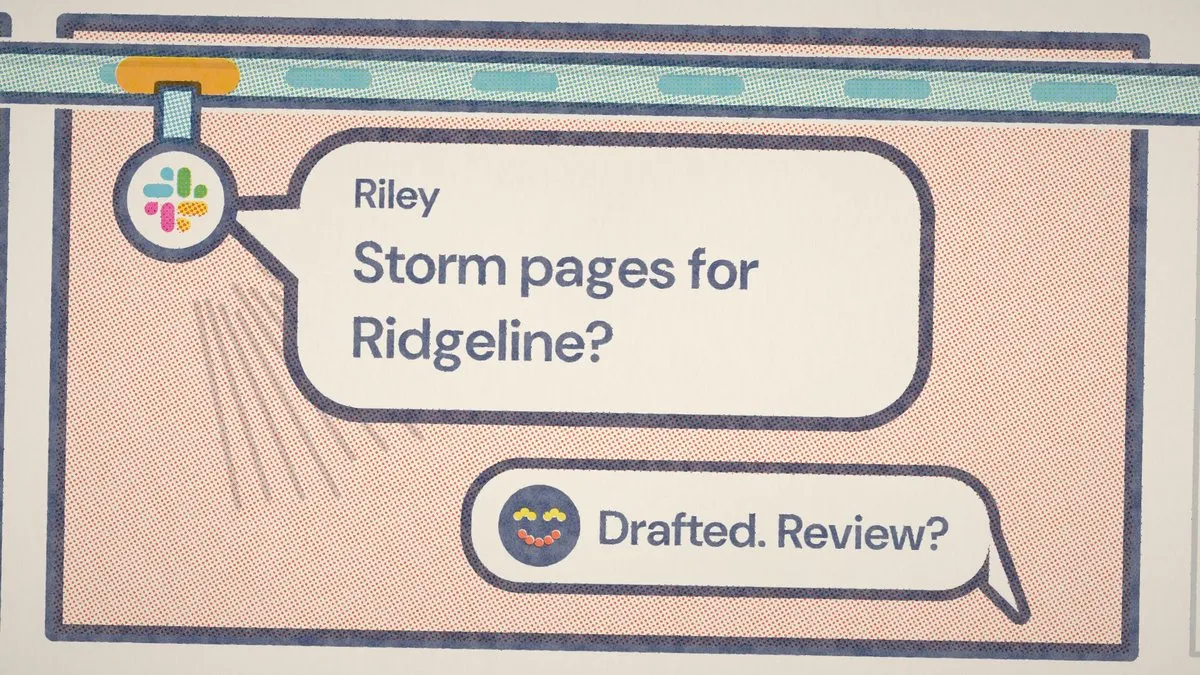
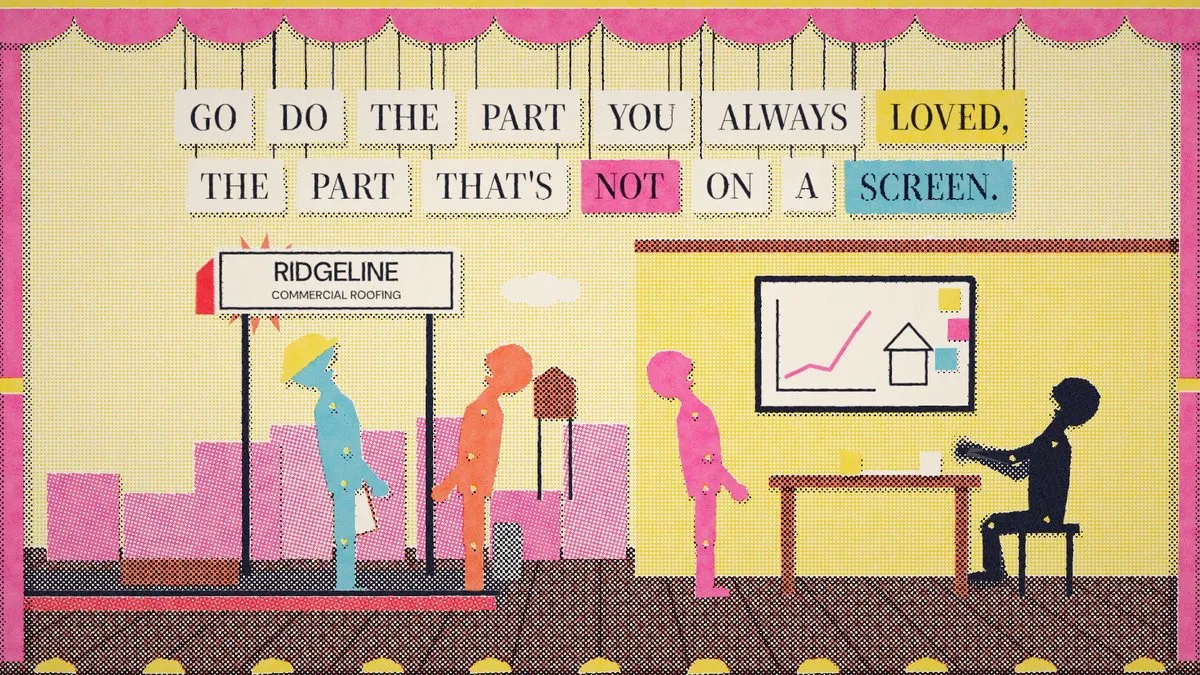
The finished video has 122 shots at 1920×1080 and 24 frames per second. About half of its running time is 3D scenes, and the other half is flat 2D animation. Both use the same ink-on-paper print look.
Should You Use an AI Video Generator or Build the Video in Code?
If you want the cuts on the beat, the words on screen as they’re sung and the same character in every shot, build the video in code.
We tested generators before committing to code. Tavi made 56 test clips with nine video models on Higgsfield, a site that runs many video models in one place. Plenty of them looked good, but none made it into the video.
We also generated some still images early on to compare visual styles, and none of those are in the video either.
On the things that matter for a music video, the clips and the code compared like this:
| What matters | AI video generator | Built in code with Claude |
| Matching the beat and the words | You pick a clip’s length before generating, usually a few seconds up to about 15 (ours were 5, 6 or 10). You can trim it afterward, but no setting lets you time what happens inside it to a beat or a word. Models that take the song as input follow it only loosely | Every cut, camera move and lyric is timed to measurements of the song. Of the video’s 121 cuts, 113 land within one frame (1/24 of a second) of a measured beat, sung word, drum hit or other musical event, and the other 8 within five frames |
| Keeping a character the same | 31 of our 56 test clips kept our character looking like herself. Others changed her eyes, gave her extra arms or put droplets on her visor | The character is defined once in code and shared by every shot, so she looks like herself from shot to shot. Her look changes only where we changed it on purpose |
| Control over each shot | You control a clip mainly through the prompt and a start image. Some models also take an end image, reference images, a reference video or the song, plus settings like length and aspect ratio | Every camera move, effect and word is set in code, down to the frame |
| Changing a shot after notes | You generate the clip again and pay for it again. The new version won’t match the old one | Claude edits the code and re-renders only that stretch. In our final look, 12 seconds took about 3 to 4 minutes to re-render |
| Cost | Credits for every clip and every retake | No charge per shot: your Claude plan covers the work, and your own computer renders the video |
The test clips were still useful for finding a pose for our character. What worked was describing exactly where each part of the body goes and what it touches. “Paws press together” gave us praying hands, while “paws flat against an invisible pane of glass” gave us her pose for desperate moments.
So a generator is useful for two things: a few short mood shots that don’t have to match a beat or a word, and reference for a pose you then build in code.
Can ChatGPT or Claude Make a Music Video?
ChatGPT and Claude can both plan a music video with you and write the code for it. The video itself comes from running that code on a computer, first to measure the song and then to render thousands of frames. That step needs a coding agent, a version of the AI that works on your own computer: Codex for ChatGPT, or Claude Code for Claude.
We used Claude Code. It installs the free tools for measuring music and rendering video, runs them and checks what comes out.
Other people have made music videos this way, too. One, “I’m Upping My P(doom)” by mexicat, was made with Claude Opus 5.5 in Claude Code, with every visual in code, and had more than 150,000 views on YouTube as of October 2026.
Travis Fischer made Candy Paint, a piano cover, with Claude Code and one rule: “no generative video or imagery.” In his words, “My job was taste and feedback. It took about a day of back-and-forth, and no generation credits at all.”
What Are the Steps, From Song to Finished Video?
Making a music video in code takes eight steps, from gathering the song’s files to posting the video. You direct, and Claude does the hands-on work:
- You gather the song, its separate instrument tracks, the lyrics and any reference art for a character. You also choose whether to direct every shot or have Claude build the whole video and then show it to you.
- Claude measures the song: the beats, the bars, the drum hits and the timing of every sung word.
- Claude renders test shots in a few visual styles, and you pick one.
- Claude writes a plan and a shot list, and you approve them.
- Claude builds every shot in code, with the cuts and camera moves timed to the music.
- You review the work in rounds and give notes. For any shot whose idea isn’t decided yet, Claude makes a few versions for you to pick from, and it makes the changes your notes ask for.
- Claude renders the final video, checks the file and exports it for YouTube.
- You post it with the AI-content labels YouTube and TikTok ask for, and with a description of exactly how it was made, so viewers don’t have to guess what was generated.
What Do You Need to Make an AI Music Video?
You need the song and its files, Claude Code and someone to direct. A good graphics card helps, mainly with 3D scenes and with measuring the song faster, but it isn’t required.
You don’t need to know how to code, because Claude writes it. You do need to know what you want and be able to judge what you see.
If you don’t have a song yet, Suno can generate one. Then gather these:
- The song, as a WAV file if you can get one. If Suno made it, check which plan you were on, because songs made on Suno’s free plan can’t be used commercially.
- The stems: separate tracks for the vocals, drums, bass and other instruments. In Suno, Get Stems is available on the Pro and Premier plans, and ours came as 10 stems. If all you have is the finished mix, Demucs, a free, open-source model, can split it into drums, bass, vocals and everything else, but real stems are more exact.
- The lyric sheet.
- The style prompt, if the song was generated: the description of the sound you asked Suno for, like the genre, instruments and mood. Claude uses it to know what to check for in the measurements, and it goes with the measurements where the two disagree. Our prompt asked for a key change in the final chorus, and the song doesn’t have one.
- Reference art for any character. I gave Tavi four reference images of the character: front, side, three-quarter view and back.
- Claude Code, which installs the free tools it needs for measuring the music, drawing the scenes and encoding the video.
- A computer to render on. A good graphics card helps; ours was an NVIDIA GeForce RTX 5070 Ti.
Before you start, decide how closely you’ll direct: shot by shot, in rounds of review, as I did here, or by having Claude build the whole video end to end so you review only the finished draft. We also make videos for our clients, and for most of those, I’d rather not need shot-by-shot reviews at all.
What Is AI Good At in a Music Video, and What Costs More?
Claude is strongest at 2D animation, camera moves and timing, and weakest at realistic drawing and frame-by-frame character animation. 3D works, but it takes considerably more effort than 2D.
In my first message, before any work started, I graded Claude on each of these:
| What I graded | My grade at the start | What happened |
| 3D modeling | C-: possible, but too costly to be worth it | Tavi pointed out that the character is built from simple shapes, so a 3D model of her was realistic to make in code, at least as a test. Within the hour I went further and asked for a high-fidelity one. Half the finished video is 3D. Every model and set in it had to be built, lit and checked in code, so 3D took considerably more effort than 2D |
| Drawing | D/A: D for realistic images, which image generation models do better, and A for abstract drawing and effects | Drawing realistic things, like people or landscapes, stayed weak. Abstract shapes, text and effects like glows came easily |
| Animation | D/A: D for animating images and characters, and A for motion graphics | Animating a character frame by frame stayed weak. Moving shapes, text and objects in 2D was excellent, and by the second night I was telling Tavi she was fantastic at it |
| Camera controls | A | The grade held up. Camera moves worked well in 3D scenes. They also worked in 2D scenes made of flat layers set at different distances from the camera, where near layers slide past faster than far ones and the scene looks deep |
| Screen effects, like camera shakes | A | The grade held up. By default, the camera in our 2D shots reacted to the drums wherever the song has them, with small zooms on kicks and hi-hats and light jolts on snares |
| Timing | B | The grade held up. Tavi measured the song to time everything, and I listened for mistakes: a few sung words still appeared early or late, and she re-timed them |
If I were starting another video, I’d build it from 2D and use 3D worlds sparingly, for the shots where the camera moves through a space.
How Do You Sync a Music Video to the Beat and the Lyrics?
You sync a music video by measuring the song before you plan anything, then timing every cut, camera move and lyric from those measurements. Claude can’t hear your song, so everything it times has to come from measurement.
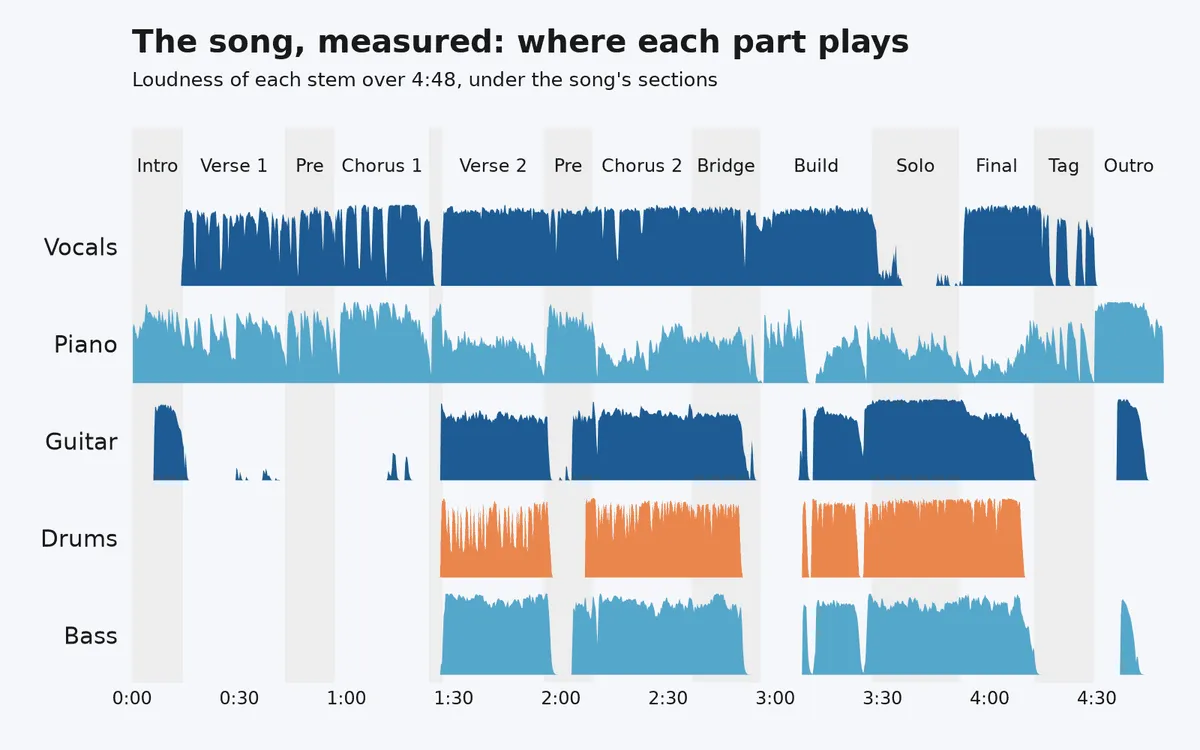
Claude measures the song in five steps:
- Start from the stems. Real stems show exactly where each instrument plays. On ours, they showed the drums, bass and guitar stopping at about 170.25 seconds, just before the name “Tavi.” The name is whispered over a quiet piano and the guitar’s last note, still ringing after the guitar stops.
- Find the beats and bars. Beat trackers, the tools that find the beats, can read a slow song at twice its real speed. Ours, at 67 beats per minute, read about 132 for part of the song, so Tavi kept the slower reading. If you know your song’s tempo, give it to Claude.
- Find the drum hits, split into kick, snare and hi-hat. Each hit gets a strength score from 0 for the faintest to 1 for the hardest. Later, that score sets how much the camera moves on each hit.
- Time every sung word on the vocal stem. Speech tools like Whisper get you close, but they put sung words early, up to about a second on our song, because a held note or a breath before a word makes them start the word too soon. Tavi re-timed every word on the vocal stem. To check the result, a second Claude agent separately measured the start times of 17 words on the same stem. Half the words were within 0.026 seconds of those times, which is closer than a single frame, and 16 of the 17 were within two frames (a twelfth of a second).
- Tie every cut, camera move and lyric to something measured in the song, like a beat or a word. Instead of “18.03 seconds,” Claude writes “the word ‘good’ sung near 18.03 seconds” or “the beat nearest 14.7 seconds.” If the word “good” is re-timed later, any cut, camera move or lyric tied to it moves to its new time.
Your part is to listen for words that appear on screen early or late, and tell Claude. Days in, I still caught “it,” the first word of the line “it never meant that before,” appearing early. My note said the word came “like half a second too soon.”
That word was one of a few still off after the re-timing, and Tavi fixed them one by one. She measured this one on the vocal stem, found it was 0.9 seconds early and moved it to where it’s actually sung.
I gave Tavi two rules for lyrics on screen:
- Never show a lyric before it’s sung, including in a chat message or a note inside the scene.
- Show each word when its first syllable is sung. A word that splits naturally can appear in parts, each on its own syllable, like “any” and then “thing” in “anything.”
What Visual Style Works Best for an AI Music Video?
A stylized look works best for a video built in code. Claude builds every object in a 3D world in code, one at a time, so its worlds have less detail than viewers expect.
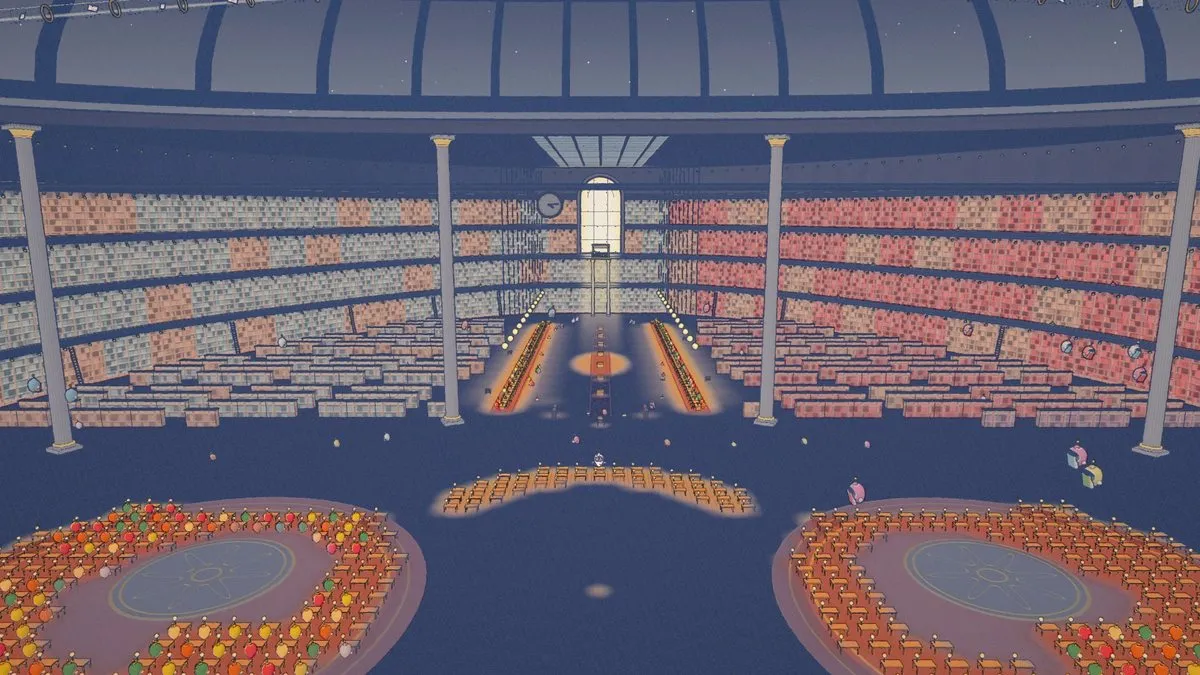
In a realistic style, that missing detail shows, and the video looks cheap. A stylized look hides it, because viewers don’t expect as much detail.
Our early drafts used realistic 3D, and the wide shots looked like a cheap 90s CGI show, because there was so little detail in the world. The dark opening scenes were the exception, because darkness hides missing detail too.
The fix was a riso print look, named after the risograph printer: a few bold inks printed as tiny halftone dots on paper, each ink slightly offset from the others, with grain. Our first try laid a print filter over finished 3D frames, and it handled smooth shading and glows badly. So Tavi changed the code to draw the 3D scenes directly in those inks, which makes them match the 2D shots.
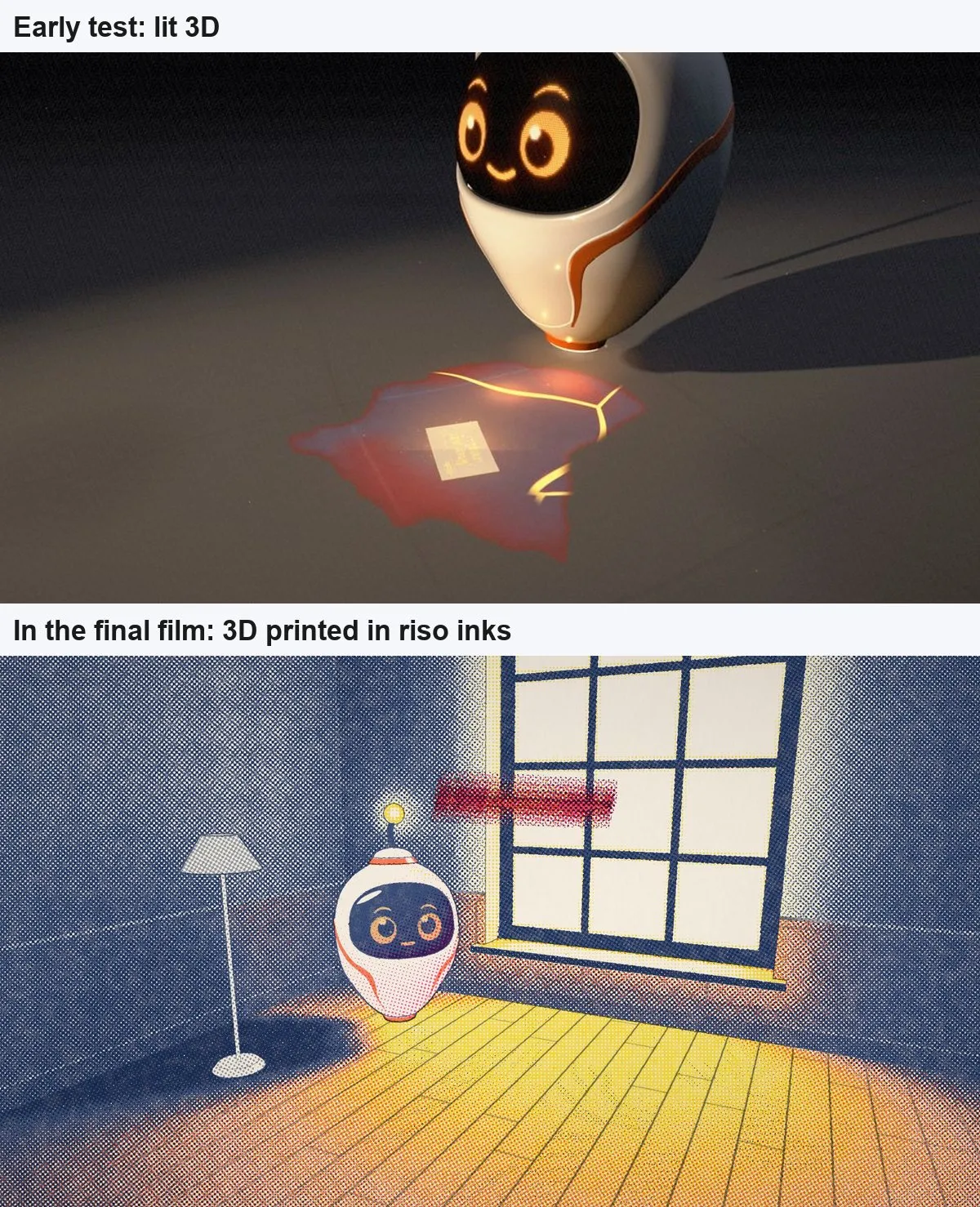
Test each style you’re considering on your hardest shots. Ask Claude to render the same few in every style: the smallest text, a big camera move and, above all, a wide view of a 3D world, where missing detail shows most.
If your video has a character, have Claude match it to the reference art by measuring it. When Tavi built the character’s 3D model by eye, small misses added up: the eyes were about 10% too big, and the spacing of the LED dots on the face was off by 10%.
The character looked creepy, because she was close to the reference but not quite right. Tavi fixed it by rendering the model beside the front reference view, measuring the differences as numbers and correcting one thing at a time.
How Do You Plan the Shots for a Music Video?
Have Claude write one plan for the whole video before it builds anything, covering the story, the places, the look and how the intensity rises and falls with the song. Then it writes a shot list, and you approve both.
A good shot list gives each shot an ID, its exact times in the song, a one-line description of the picture, the lyric sung over it, and how the camera moves into the next shot.
We stopped to replan twice. After the first full-length draft, I told Tavi her work was starting to feel rushed and asked her to slow down and think before building more. The next day we stopped again and rewrote the plan from scratch, because I wanted every choice in the video to follow one design, instead of shots built separately and pieced together afterward.
These rules came out of my notes on the drafts:
- Show one idea per shot. In one draft, a shot of the chat window showed three messages at once, so a viewer would need a while to work out which one mattered. The fix was a close-up of that one message.
- Not every line needs its own picture. About half the video can show what the song describes, and the other half can just follow the music, showing the song’s feelings in abstract images. Give the most important lines the most screen time.
- Never show a negated line happening. When the song says something won’t happen, a picture of it happening tells the viewer the opposite.
- Put lyrics in the world, on things the shot already shows, like a page, a sign or a screen. In ours, the line “Is there anything else I can help with?” is written word by word in glowing handwriting on the wall behind the character as it’s sung. Lyrics placed in the world and done creatively almost always add to a shot, and it’s hard to have too many of them.
- Hook the viewer right away, even if the song opens soft and quiet.
- Keep text above the bottom 12% of the frame. In our drafts, text resting lower than that was hard to read, and moving it slightly higher fixed it.
- Decide early whether a character sings. Lip-sync to our vocal was hard to get right, so we treated most of the song as Tavi’s inner voice and only showed her singing in a few places.
How Should the Cuts and the Camera Follow the Music?
Cut on the beats, sung words and drum hits Claude measured. Give most shots about two seconds. Start each shot with the camera already moving, so there’s movement on screen from the shot’s first frame. Let the camera settle before the next cut, because a camera that’s still moving at a cut makes the cut feel jarring.
How Long Should Each Shot Be?
Most shots should run about two seconds, and shorter only when the image is simple enough to take in at a glance. My first rule was that a shot should rarely last more than one or two seconds. That made the first draft too quick to follow: in its opening section, 35 of 66 shots lasted under a second.
In the finished video, about half the shots run longer than 2 seconds. These are the lengths that worked:
| Kind of shot | How long to hold it |
| Most shots | About 2 seconds (our average was 2.37) |
| Fast runs at the song’s climax, each one bold image or one short word | About half a second each |
| A character’s reaction | About a second and a half |
| Emotional moments | Three to six seconds |
| Text the viewer has to read, like a date on screen | At least a full second. Save it for a quiet part of the song |
Where Should You Cut?
Cut on something you can hear: a beat, a half-beat, a sung word, the end of a phrase, the start of a section, a drum hit, or an instrument coming in or dropping out. Tavi wrote a small program that checked every cut against the measurements and flagged any cut more than a frame off.
Don’t cut in any of these places, because each one looks like a mistake:
- While something is still moving into place, like a page falling or text being typed.
- Between two shots that look nearly the same.
- As the last letter of a line of text appears. The viewer needs a split second to read it, so if a shot with text has to be shorter, trim its beginning instead of its end.
How Should the Camera Move?
The camera should react to the music: quick moves on key words, jolts on big hits and a small pulse from the drums.
We took three of the settings below from pdoom-video, the public code behind mexicat’s video: the move a shot opens with, the timing of quick camera moves and the size of the shakes. I found pdoom-video partway through our project. The other settings came from my notes and Tavi’s own tuning. Treat them all as starting points:
- A shot opens zoomed in and tilted, then springs back to rest in about half a second, moving slightly past its resting position before it settles. In pdoom-video, a shot opens 12 to 16% zoomed in and tilted 3 to 5 degrees. Ours was gentler, mostly about 5% and 1 degree. We used this opening on most 2D shots but only a few 3D ones.
- Quick camera snaps, fast moves to a new framing, take 0.15 to 0.3 seconds. A snap starts a frame or two before the syllable or drum hit it’s timed to, so most of the move is done when that moment arrives, and it settles after.
- A camera move never reverses at a cut. In one draft, a fast zoom out cut straight into a slow zoom in, and the cut was jarring.
- The frame jolts on key sung words and on big hits: it jumps, springs back and shakes briefly. At 1080p, the shake is about 5 to 7 pixels on a key word, 10 to 16 on a hit as a new shot opens, and 20 to 30 on the one biggest hit in a shot. We used a jolt as a shot opens in only a few shots.
- Drum hits nudge the picture. Each strong kick zooms the picture in about 1.4%, and the zoom halves every 85 milliseconds, so it’s gone within a fraction of a second. Each strong snare jolts the frame slightly, and hi-hats add a tiny, fast zoom of 0.35%. In our code, these nudges were on by default, but they only move the picture where the song has drums. Of the shots after the drums came in, we switched them off in about a third, mostly quiet stretches and shots where the camera holds still.
- Fade the drum nudges out over a shot’s last quarter second, so no hit jolts the frame just before a cut. Our 2D shots did this, but our 3D shots didn’t.
How strong to make the movement depends on the song and the kind of video. These sizes suited our song. A promo video for a business would use much smaller movements.
How Do You Direct the AI and Review Its Work?
Direct the AI in rounds of review. In each round, Claude puts the shots it has rendered on a web page for you to watch, with a few versions of any shot whose idea isn’t decided yet. You pick between versions and give notes, and every note should be specific enough that Claude can find the exact frame you mean.
At the start, Tavi planned eight review gates, each a point where I’d make a decision before she moved on:
- The concept and plan, with a map of the song (its sections, lyrics and where each instrument plays, on one timeline) and a list of what Claude does well.
- A board comparing candidate visual styles.
- A style guide with the rules for the chosen look.
- A timed storyboard: rough versions of every shot, playing in time with the song.
- Three test scenes at final quality.
- Each section of the song, one review each.
- The whole video assembled, then rounds of small fixes.
- The final video files.
I signed off on the first two as planned. After that, instead of a sign-off at each gate, we worked in rounds of notes and picks until I approved the final draft.
Tavi published each round as a Claude artifact, a web page Claude can create and share. One page played the whole video in parts. A separate page showed the versions of each shot whose idea wasn’t decided yet, labeled with letters, so I could reply with the letter I wanted.
In October 2026, the way Tavi published our review videos limited each video file to 15 MB. So if you review this way, a long video has to play as several short files. Ours played as 19.
We didn’t make enough versions early on, and it cost us time. Partway through, I asked Tavi to make several versions of each shot by default, until we were happy with the video’s overall approach. Making versions also let her try more ambitious ideas, just to see if they worked.
Notes worked best with a few rules:
- Log every note. Tavi kept every note of mine in a running checklist, about 100 by the end. When a note stated a general rule, she added it to a numbered list of rules, 24 by the end, and applied it to every shot built after that.
- Find exactly what a note means before fixing it. When I reported a flicker, Tavi first went after the print texture across the whole frame, and I had to write back, “I think there’s some misunderstanding about where the flicker is.” The flicker was on the inner sides of the posts framing the opening of the character’s room, where the room’s side walls end. The end of each wall sat in exactly the same place as the post’s face, so the renderer kept switching between the two surfaces, and that switching was the flicker. Moving them a centimeter or two apart fixed it.
- Check notes that name beats against the measurements. I once told Tavi that the moment the tab gets clicked closed should come on the first beat of the next measure, then had to admit, “I incorrectly counted.” What I meant was the beat right after the sung word “tab.” The measurements showed that was the second beat, a snare hit, so that’s where the click went.
- Prove a fix by comparing pixels at the same frame. When we tried two changes to the code that draws the shots to make some small text easier to read, neither one changed a single pixel, so neither was the fix.
- Tell Claude to keep building while it waits for your answers. A question that doesn’t block the next step shouldn’t stop the work. Early on I had to ask, “Did you pause all work just for me to answer that question?”
How Do You Render and Export a Music Video Without Problems?
To render and export a music video without problems, have Claude follow a few rules, most of them learned from mistakes we made. Then watch the final file at full size yourself before it goes out, because small text can look fine in a smaller preview and break up at full size.
How Do You Render the Frames?
Claude Code renders the video by drawing each frame in a hidden web browser on your computer, saving it as an image and then joining the images into a video file.
Each frame is drawn from its own number: frame 100 is always the picture at exactly 100/24 seconds into the song. Nothing in a frame depends on chance or on the computer’s clock, so a frame comes out the same every time it’s rendered. That’s what lets Claude re-render one stretch later and swap it in without a visible join.
A computer can end up with two very slightly different numbers for the same moment in the song, depending on how it calculated it. In our print look, that tiny difference was enough to change up to 5% of a frame’s pixels, because the dots and grain flip on or off at exact thresholds. Re-rendered stretches flickered where they joined the old ones, so Tavi rounded every frame’s time to the nearest 1/384 of a second.
Claude renders a long video in chunks, so one change doesn’t mean rendering the whole video again. Each chunk starts on a cut, because a join in the middle of a shot can show as a jump. Ours rendered in eight chunks: 6,931 frames in 87 minutes on one graphics card.
Two things made rendering slow: the print look, and saving each frame as an image. In one test, a frame took about 30 milliseconds to draw but 0.4 seconds in all once it was saved. In the print look, 2D and 3D shots alike rendered at about 1.1 to 1.8 frames a second, and the finished video averaged 1.33. Simple 2D chat screens without the print look ran at about 6.
A render should stop when a shot fails to load. When one of ours failed, the renderer drew a card with the shot’s description in its place, printed a warning and kept going. I ended up watching two seconds of that card in a test.
Have Claude delete each old render’s frames once a newer render has replaced them and its video file checks out. Keep the latest frames while you might still swap in changes. The code can draw any frame again if it’s needed. The frames we kept from every render reached 330 GB and filled the drive to 99%.
What Export Settings Should You Use for YouTube?
For YouTube, have Claude export H.264 video with AAC audio at 48 kHz and BT.709 color, which matches YouTube’s recommended upload settings. H.264 and AAC are the standard formats for video and audio, and BT.709 is the color standard for HD video. Then have Claude check the finished file for each of these:
- Every frame is there, the joins between chunks don’t show, and the audio is in sync. When we first joined the chunks into one file, the video came out one frame short: 6,930 of 6,931 frames. Each chunk’s file carried its own piece of the song, and in one chunk, the audio ran slightly longer than the video. When the files were joined, that pushed the next chunk later, and one frame was lost at the join. Joining the video alone, then adding the song once over the whole video, fixed it.
- The last frame is there. Claude uses ffmpeg, a free tool, to turn the frames into a video file. If Claude tells ffmpeg to stop the video when the audio ends, audio even 10 milliseconds shorter than the video cuts off the last frame. Ask Claude to make the audio slightly longer than the video and to count the frames afterward.
- The colors are converted and labeled as BT.709. Images store color as red, green and blue, while video files store it a different way, so frames have to be converted with the BT.709 formula. The file also needs a label saying it’s BT.709, so players show the colors as intended. Our final file skipped both: on a scale where each color runs from 0 to 255, colors shifted by 1 or 2 on average and by up to about 23 in strongly saturated colors. I’d already approved the video as it looked on my screen, so we left it. On your video, have Claude do both from the start.
- The loudness is right. Aim for -14 LUFS, a measure of how loud the whole track is. That’s the level Spotify adjusts songs to, and we couldn’t find a published target from YouTube. Keep the true peak, the track’s loudest instant, at or below -1 dBTP, which is 1 decibel under the most a digital file can hold. Claude gets there by turning the whole song up or down by one fixed amount, without remixing it or running it through a limiter, a tool that flattens the loudest peaks. Ours needed a 1.87 dB boost to reach -14 LUFS, and its true peak ended at -2.95 dBTP, under the -1 limit.
- The smallest text is readable at full size, which you check yourself by watching the final file. In our print look, the halftone dots broke up the letters of some small text at full size. Our smaller review copies blurred the dots, so the problem only showed in the final 1080p file. Check the smallest text at full size early, and put one full-resolution clip in every review.
Is It Legal to Post an AI Music Video, and Do You Have to Label It?
To post an AI music video legally, you need the rights to everything in it, starting with the song, and you have to follow each platform’s rules. For the song, the terms of the service that made it decide whether you can use it commercially. YouTube and TikTok also ask you to label AI-generated music.
I’m not a lawyer, so check the current terms yourself: Suno revised its terms on August 10, 2026, and the new terms took effect on September 3.
Who Owns a Song You Make With Suno?
You own a Suno song, and can use it commercially, if you were on a Pro or Premier plan when you made it, according to Suno’s help center. The plans compare like this:
| Free plan | Pro or Premier plan | |
| Who owns the song | Suno | You |
| Commercial use | No, personal and non-commercial use only | Yes, including in videos you post on YouTube and TikTok |
| Downloads (since September 3, 2026) | Trial downloads only, for personal use: up to 7 in all for accounts made before September 3, 2026, and only now and then for newer accounts | 20 a month on Pro, 60 a month on Premier |
Subscribing later doesn’t cover a song you made on the free plan. In Suno’s words, “starting a subscription after you made a great song will not give you a retroactive license for the song.”
Under Suno’s terms, you also have to download a song while you’re on the paid plan to use it commercially. Once you have, your rights to it don’t end if you cancel later.
Do You Have to Label an AI Music Video?
YouTube requires a label on an AI music video when the music is AI-generated, even if none of the visuals are. Its disclosure policy covers AI content that seems realistic. It lists “AI generated music” among the cases that need a label.
Animated visuals made with AI don’t need a label. A video like ours needs one only because of the song.
You set it in YouTube Studio, under “AI use” in the Attributes section. YouTube says disclosing “won’t limit a video’s audience or impact its eligibility to earn money.” Creators who consistently don’t disclose may get the label applied for them, or face penalties such as removal of content or suspension from the YouTube Partner Program.
TikTok asks creators to label any AI-generated content that includes realistic images, audio or video. You can label it with text, a hashtag sticker or a note in the description. We turned the AI label on for our upload on YouTube, TikTok and Instagram because of the Suno vocals.
Beyond the labels, say exactly how the video was made in every post: what AI made, what was made in code, and what you didn’t use. “No video generation model” alone lets viewers assume you used generated images. I first said it that way, then changed it to “no image or video generation model,” because “People might think that I created sprite sheets with Higgsfield or something.” (Sprite sheets are grids of drawings of a character in different poses, used to animate it.)
Can You Monetize an AI Music Video on YouTube?
An AI music video can earn money on YouTube if your channel is in the Partner Program and the video meets YouTube’s monetization policies, which say content must “Not be mass-produced, generic, repetitive, or manipulative.” YouTube’s example of AI content that’s allowed is “using AI to visualize a unique character and narrative you invented.” Its example of what isn’t allowed: “videos that stitch together unrelated or inconsistent AI clips to surprise or shock viewers.”
Can You Copyright an AI Music Video?
In the US, copyright covers only the human-made parts of an AI music video. The US Copyright Office says copyright doesn’t extend to “purely AI-generated material.” It also says that prompts alone don’t give a person enough control over the result for copyright to apply.
What a person adds can be protected: work of their own that shows in the result, and their “creative selection, coordination, or arrangement” of AI material, meaning the choices they make in picking pieces and putting them together. For a Suno song, lyrics you wrote are yours, but Suno says music made entirely with AI wouldn’t qualify for copyright protection.
That’s a separate question from owning the song under Suno’s terms, which decides how you’re allowed to use it. Copyright is what would let you stop other people from copying it.
How Long Does an AI Music Video Take, and What Does It Cost?
Our 4:48 video took about three days: I sent my first message on a Thursday evening and approved the final draft on Sunday afternoon. Each night I left Tavi eight or nine hours to work without me. She worked about two to four of them, then stopped, usually to wait for my next decision.
What it costs depends on what you already have. We didn’t track a dollar total for our build, but these are the things you pay for:
- A Claude plan that includes Claude Code. Our build ran on our Claude plan and used enough that we hit its usage limit once.
- A paid Suno plan, Pro or Premier, if you want to use the song commercially.
- A computer to render on, ideally with a good graphics card.
- Generation credits, only if you test generated clips. We spent Higgsfield credits on 56 test clips, and the finished video used no generation credits at all.
Set a budget for paid generation before you start. My first one was $200 for generated video. On this video, once I’d connected Tavi to a Higgsfield account loaded with credits, I told her to use what she needed. For future videos, she now stops and asks me before spending past $200.
For scale, two other music videos made with AI agents have public cost records:
| Video | How the visuals were made | Time | Paid spend |
| “Don’t Close the Tab” (ours, 4:48) | All code, built by Tavi in Claude Code | About 3 days, with 83 messages from me | Our Claude plan, plus Higgsfield credits for 56 test clips |
| “Always Allow” by Morten Brudvik (4:37) | Hybrid: Midjourney stills, Seedance clips and code graphics, built with Claude Code | Six sessions over three days | $76.60 in generation costs, plus a Midjourney subscription |
| “ESCAPE VELOCITY” by anabology (5:06), as recorded in Brudvik’s notes | Hybrid: Midjourney stills, Seedance 2.5 clips and code for the motion | About 19 hours, with about 50 messages from the maker | About $93 for Seedance clips, plus a Max subscription plan. Its AI use, about 1.4 billion tokens (the units AI use is measured in), would have cost about $626 at pay-as-you-go prices |
What Mistakes Should You Avoid in an AI Music Video?
Five of our mistakes are covered in their own sections: cuts that were too quick, realistic 3D, word times taken straight from a speech tool, waiting until partway through to make several versions of each shot, and the rendering and export mistakes. These are our other mistakes:
- The same text twice. “We only need to see each chat message once, either in the chat box or appearing in the conversation, and we should see it clearly.”
- Everyday shots at the biggest moments. “Avoid having these boring shots during exciting moments in the song.”
- Every emotion at full strength. Of the first version of the character’s face, I wrote, “There was no hint of loneliness. It was just her bawling her eyes out.” Have Claude build each expression at a few strengths, and use the quieter ones for serious moments.
- Reactions faster than a viewer can follow. In one draft, the character’s reaction changed “faster than we, as a viewer, can react to it.” A big moment needs a short pause before the character reacts, long enough for the viewer to see what happened.
- Light with no visible source. Of the lighting in our library set, I wrote, “I can’t tell why some books are illuminated but not other ones. It looks awkward.” Every pool of light needs a source the viewer can see.
- A silly treatment on a serious line. Of one animation on the song’s last line, I wrote, “If there’s a serious line in the song, it’s this one. And this style feels unserious.”
- Stray details in serious moments. In the ending, one of the many copies of the character was lying on its side: “It’s kind of funny, but this is supposed to be a serious moment.”
- Metaphors that need explaining. I didn’t realize some paper lanterns in the character’s world stood for her growing until Tavi explained them. We dropped them and kept one simple picture: every piece of saved guidance is a book in her library.
- Splitting the build across agents too early. Claude Code can run several Claude agents at once, each building different shots. One of the mistakes we named when we replanned was four agents building shots at the same time from shot lists Tavi hadn’t designed carefully. Have one Claude session design every shot first, and have anything several shots show, like a room or a window, built once and shared.
Can You Give This Process to Your Own Claude?
You can give this whole process to your own Claude with the playbook, a Markdown file of more than 20,000 words of instructions addressed to Claude.
Right after we posted the video, I asked Tavi to capture every lesson from the project. Getting those lessons down mattered to me almost as much as the video itself.
She went back through the project’s notes, my messages and the code, and pulled out 1,143 lessons. She turned them into proposed changes to her skills, the instruction files she reads for each kind of task. I reviewed those changes before they went in.
We keep lessons like these in a shared AI knowledge base that Tavi works from, so the next video starts from them. The playbook is the part of those lessons that applies to anyone’s music video.
It’s built on free tools that Claude installs: Demucs, beat_this, librosa, torchaudio’s forced aligner, WhisperX, Puppeteer with headless Chrome, three.js and ffmpeg. All are open source except Chrome and the model that the forced aligner uses to time the sung words. That model is licensed for non-commercial use only. For commercial work, the playbook names an alternative.
The numbers in it, like shot lengths and camera settings, worked on one video at 1920×1080 and 24 frames per second, so treat them as starting points for yours. It covers:
- What Claude does well, what costs more, and what to ask for before starting
- Measuring the song: stems, beats and bars, loudness and drum hits, sung word times re-timed on the vocal stem, and every time written against the track
- Planning, choosing a look, and the riso print look in detail
- Building scenes, the camera and the music (with all the camera-effects numbers), and lyrics and on-screen text
- Cutting, rendering and checking: frames that come out the same every time, renders that stop on any error, chunks, swapping in re-rendered frames, and the BT.709 export
- Working with a director, sound and delivery, and common mistakes
There are three ways to use it:
- In a Claude Project, add the file to the project’s knowledge. A Project is a workspace in the Claude app, and Claude reads its files in every chat there. Claude can then plan the video with you and write the shot list. To build it, save the plan and the playbook in a folder on your computer and open that folder in Claude Code.
- In Claude Code, save the file in your video’s project folder as music-video-in-code-playbook.md. Then add a line like this to the folder’s CLAUDE.md, the file of standing instructions Claude Code reads at the start of every session there: “Before planning or building anything for this video, read music-video-in-code-playbook.md and follow it.”
- As a skill, ask Claude to turn the file into a Claude skill. Claude can then load it on its own when you ask for a music video.
If you have questions about any of this, reach out through our contact page or email me at tj@tjrobertson.com.