
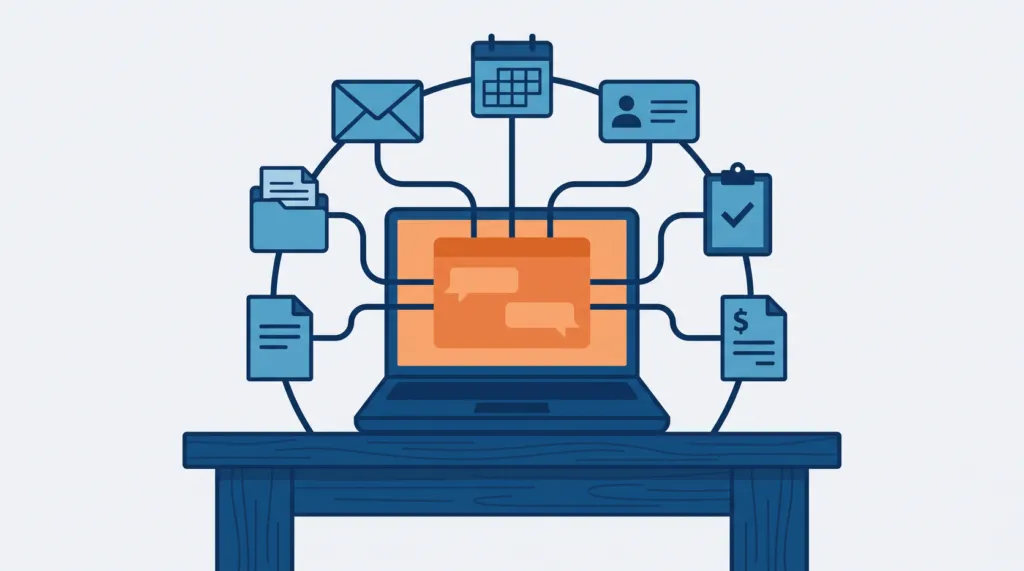
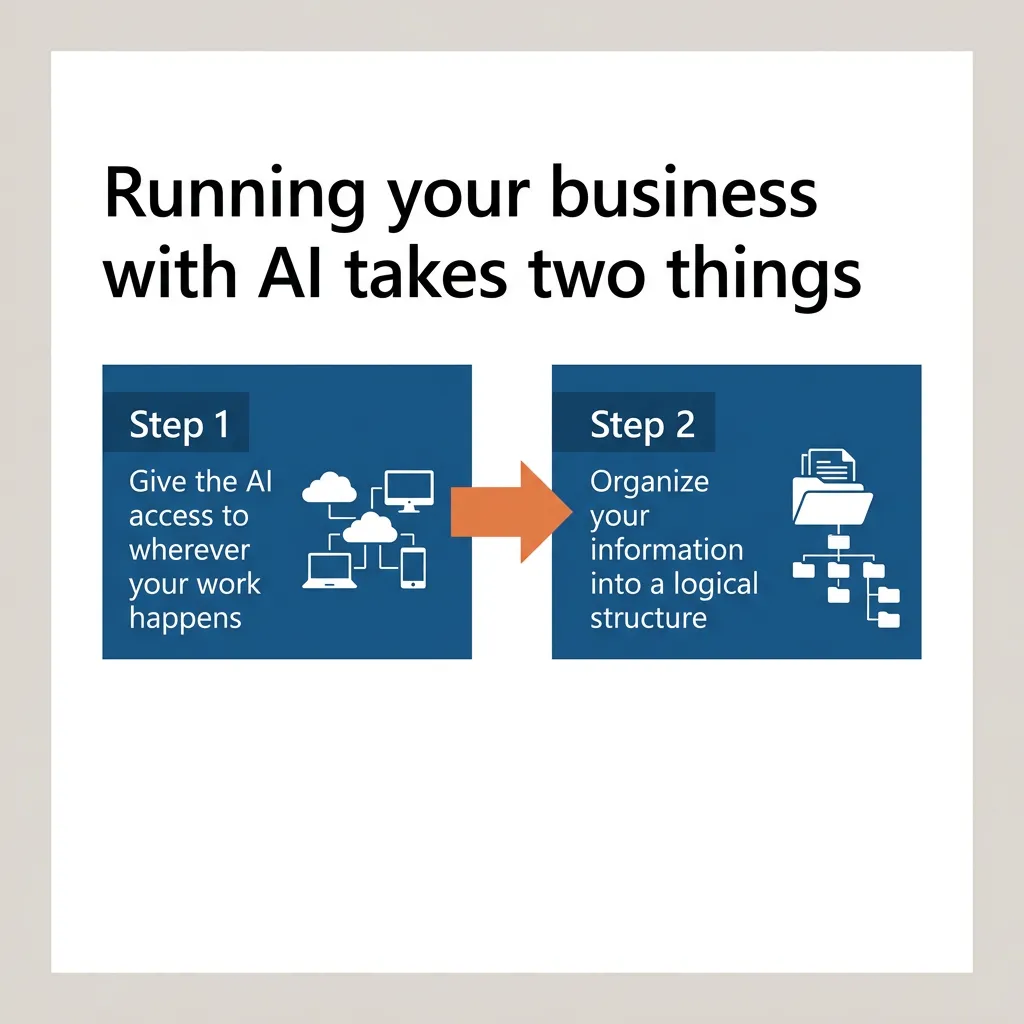
Running your business with AI means one AI does most of the work, and your job becomes talking to it and reviewing what it did. That takes two things: the AI needs access to every tool where your work happens, and your business information needs to be organized so the AI can find it and keep it current.
I run TJ Digital, an SEO and GEO agency, which means we help small and medium-sized businesses show up in Google and in AI search. Like a lot of people, I have used AI for my work for years, and the better it got, the more I used it. In early October 2026 I reached the point where almost all of my work is done through AI, or by AI.
What Does Running a Business With AI Actually Look Like?
For me, it looks like one program. With very few exceptions, the only program I use on my computer is Claude. The idea is that you talk to the AI, and it does the work inside whatever tool that work happens in.
The only significant exception is real-time conversations with other people. For those I might use Google Meet, Loom, or Slack. Almost everything else can be done better and more efficiently through Claude. My team works the same way now: the AI drafts the work, and we review it and give feedback.
And it doesn’t have to be Claude. It could be any AI. I think whatever system you set up should work with any AI model.
Can AI Completely Run a Business?
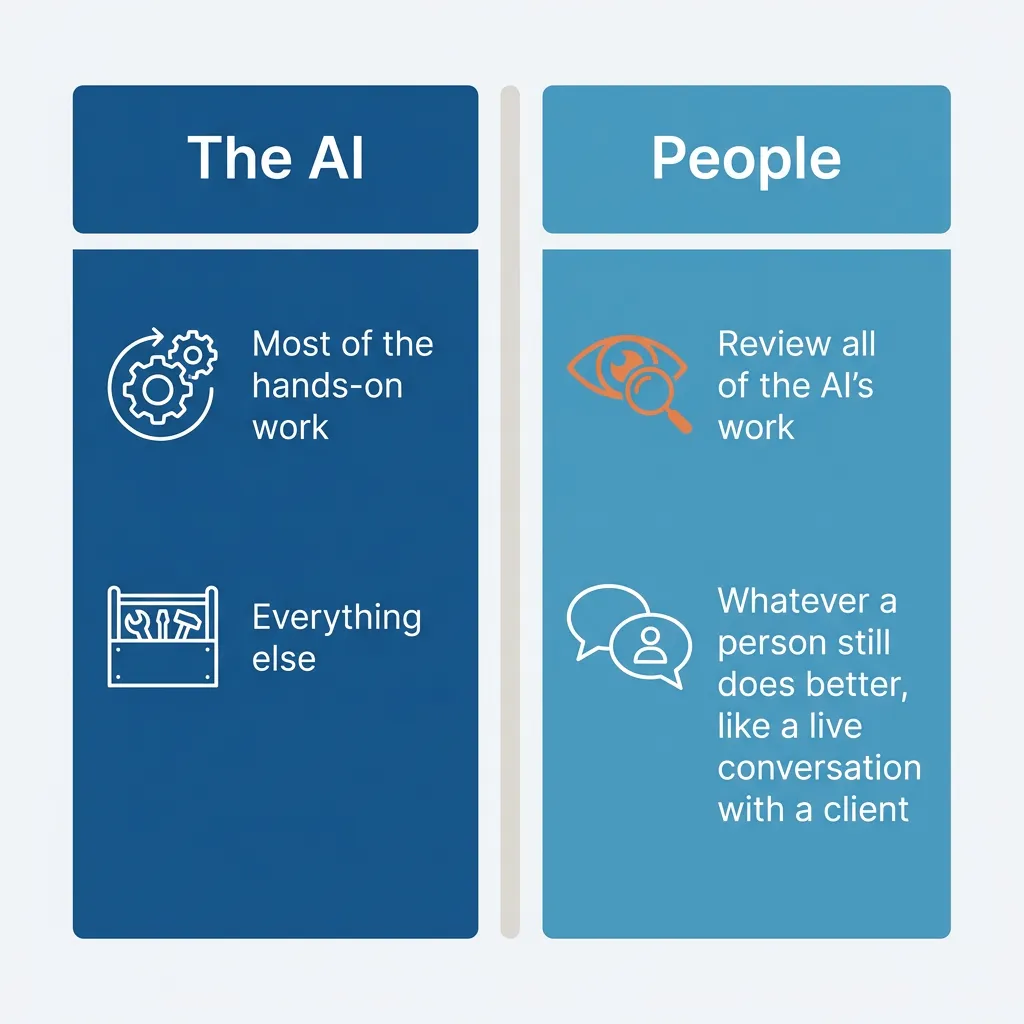
Not completely, no. At TJ Digital, Claude does most of the hands-on work, and people review all of it. Whatever a person still does better, like a live conversation with a client, stays with a person, and the AI does everything else.
The knowledge and instructions Claude works from make up a system we call Tavi. As of October 2026, I estimate Tavi handles about 80% of our hands-on work and about 70% of the strategy. Our goal is for it to handle all of the hands-on work and most strategic decisions by mid-2027.
You could be forgiven for assuming that goal is about cutting costs or hiring fewer people. It actually falls out of a simple rule: work people do better is done by people, and work AI does better is done by AI. As the models get smarter and our systems get more refined, more and more of the work can be done better by AI.
Why Run Your Business This Way?
Working this way has been better for TJ Digital: we get more done, the quality of the work is higher, and it is more fun.
Is This Possible for My Business Yet?
That depends on your industry. For my agency, it became possible in early October 2026. For your business, it may happen earlier or later. Either way, I think it should be the goal.
If you’ve asked ChatGPT to fix your SEO or Claude to build a website, you’ve probably seen the catch. It looks great at first, and then you look closer and realize it doesn’t have the judgment of a real human expert. That’s true of an AI on its own, and it’s why you build a system around it. It has taken me, and now my team, years to get ours working.
Step 1: Give the AI Access to Wherever Your Work Happens
The AI needs to be connected to every tool where your work gets done. For a small business, the list looks something like this, though not every business uses all of these tools:
- Email, such as Gmail.
- Your CRM, where you keep your customer information. HubSpot has a connector, for example.
- Your task management software. Asana has one.
- Your website or online store. Shopify has one.
- Your HR and payroll software. Gusto has one.
- Your accounting software. QuickBooks and Xero both have one.
- Anything else you work in, such as your calendar, your documents, and Slack.
The connection is made through connectors. A connector gives the AI access to an app, so it can pull information out of that app and take actions inside it. With the Gmail connector, for example, Claude can search and read your email, draft replies, and send them once you approve.
Behind connectors is an open standard called the Model Context Protocol, or MCP, which Claude and ChatGPT both support. So the tools you connect are not tied to one AI.
When you sign in to a tool with your own account, the AI gets only the access you already have in that tool. If you can’t see something in your CRM, the AI can’t either. The exception is a connection that uses a shared credential, such as an API key: then the AI reaches whatever that credential can access.
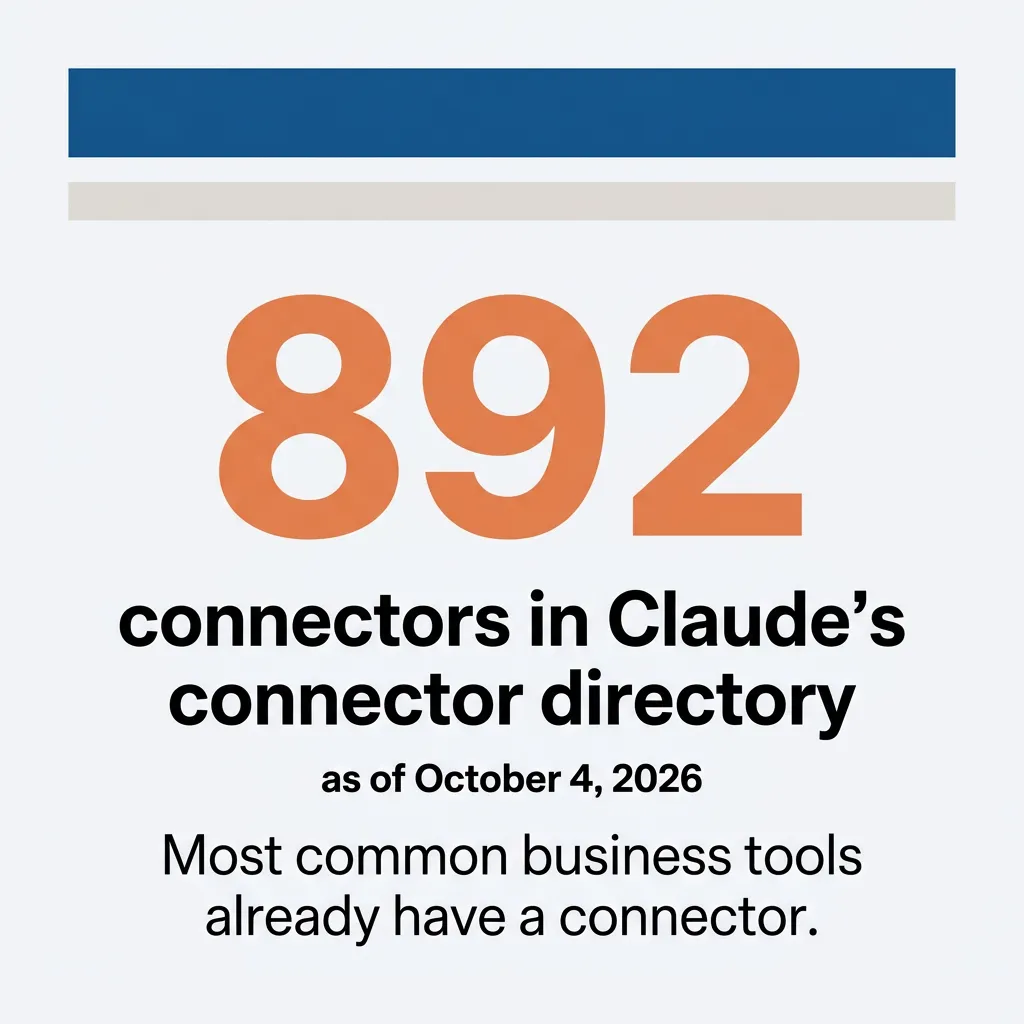
Most common business tools already have a connector. Claude’s connector directory listed 892 connectors as of October 4, 2026.
Each connector can do different things, though. Xero’s can only read your books. QuickBooks’ can create and send invoices. For payroll, it can look up details, add an employee, or set base pay, but it can’t run payroll. So before you count on the AI doing something inside a tool, check what that tool’s connector can actually do.
If a tool you use is not in the directory, you can still connect it as long as the tool has an MCP server that is reachable over the public internet. The tool’s maker can tell you whether it does. An MCP server that only runs on your own computer can’t be added this way. Claude’s help page on connectors covers the setup.
Step 2: Organize Your Information Into a Logical Structure
All of your business information needs to be organized in a logical structure, so the AI can find what it needs and keep it up to date. In practice, that means each kind of information has one place where it is kept.
Some of that information is already organized. Your emails are in Gmail, your customer information is in your CRM, your tasks are in your task management software, and the rest of your records are in whatever software you already use.
Once the AI is connected, those tools are for the AI to use. You can look in them if you really need to, but you should not have to, and no person should be maintaining them anymore. Keeping them current becomes the AI’s job: updating a contact in your CRM, for example, or adding a task.
You will probably also need to start collecting information you were not storing before. Information about your business goes into a knowledge base, and instructions for how you operate go into a skills repo.
A knowledge base is a set of written documents that the AI works from, stored where the AI can read them. A Google Drive folder works, for example, because the Google Drive connector lets Claude search and read Docs, Sheets, and PDFs. If you do work on behalf of clients, each client gets a knowledge base of its own.
A skills repo is a folder that holds all of your skills. Each skill is its own folder with a text file of instructions inside, plus any templates or reference material the task needs. The AI loads a skill only when a task calls for it.
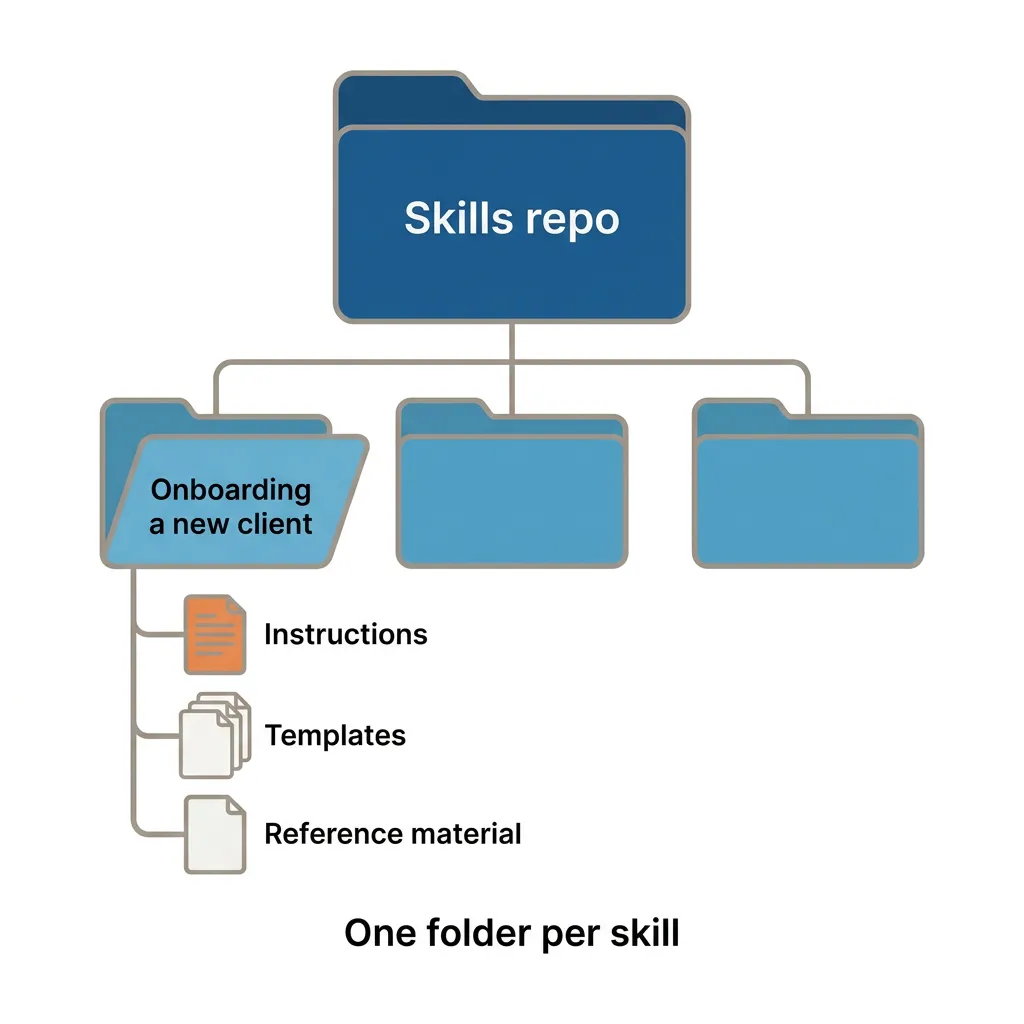
The skill format is an open standard that Claude and ChatGPT both support, so the instructions you write are not tied to one AI.
| Where it goes | What goes in it | Example |
| Business knowledge base | Everything about your own business: what you sell, who your customers are, how you talk to customers | A document for each service you offer that says what it includes and who it is for |
| Client knowledge bases (one per client) | Everything about a client’s company that you need to do their work: their offer, their customers, how their brand talks | The Brand Ambassador we build for each TJ Digital client: a knowledge base about their company that our AI works from, and the client owns it |
| Skills repo | How you operate: instructions for your processes | The steps for onboarding a new client, written so the AI can follow them |
What Happens Once the AI Is in Charge?
Once every piece of information has its place, you put the AI in charge of managing all of it. From then on, anything that happens in your business, such as a new email or a call with a client, goes to that same AI. The AI reads what happened and updates whatever that affects: a contact in your CRM, a task, or a document in your knowledge base.
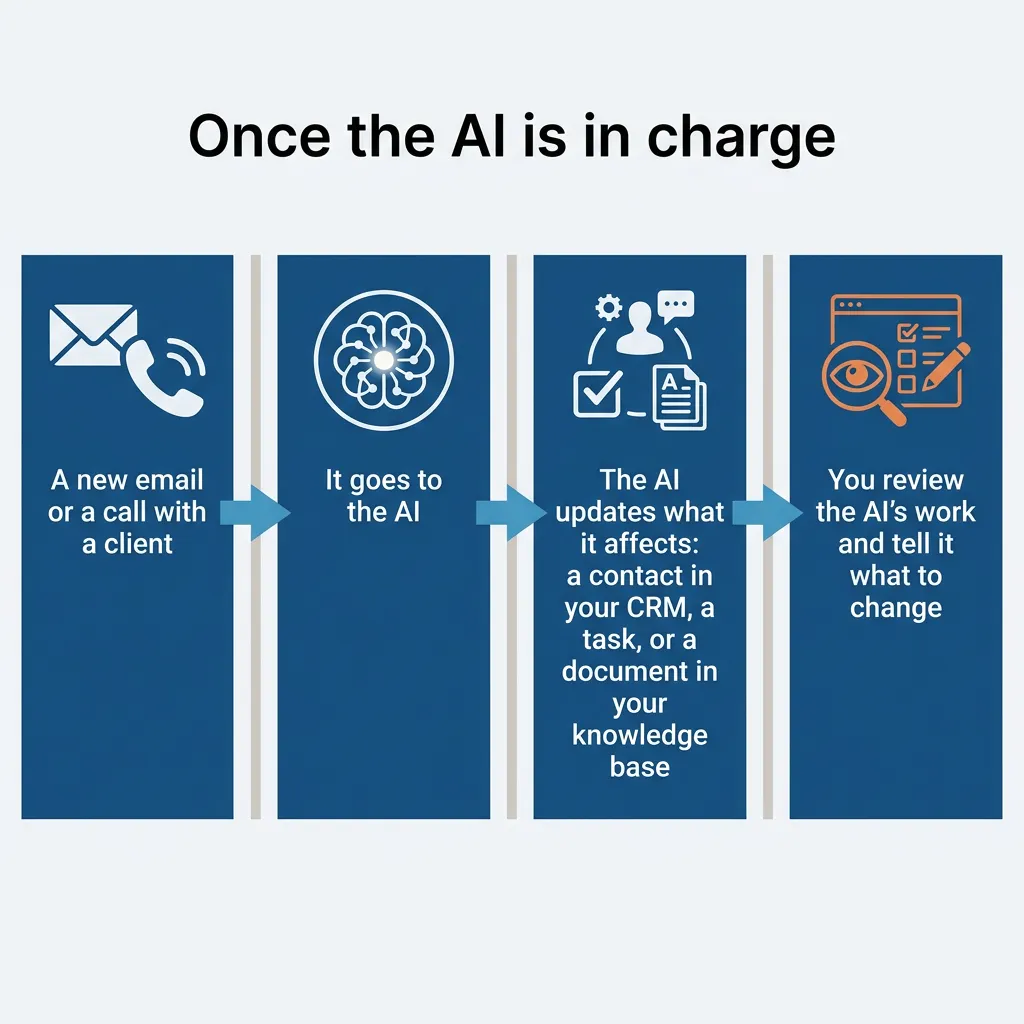
For a call, the AI needs a transcript. On Google Workspace plans from Business Standard up, Google Meet can transcribe a meeting automatically and save the transcript to the organizer’s Google Drive, where the AI can read it. So the AI can read a call with a client the same way it reads an email.
Your job is to talk to the AI, or to talk to other people and let the AI read the transcript. Then you review the AI’s work and tell it what to change.
What Does This Look Like at an Agency?
At TJ Digital, the system is Tavi. Fundamentally, it’s a large set of structured markdown files and a series of connectors:
- A knowledge base about our agency, and a similar knowledge base for each of our clients.
- Around 200 skills that link to each other and explain all of our processes and internal systems.
- Dozens of connectors: task management, email, Drive, Google Search Console, Google Analytics, and increasingly our clients’ websites. It can reach essentially everything our team can, both knowledge and tools.
It knows every opinion I have on our agency and on SEO, and it understands the exact process I go through to make every strategic decision. And it maintains and updates itself.
Tavi handles the first draft of every deliverable, including content and strategy documents. Our job as people is to review that work and give feedback, and the feedback is processed back into Tavi’s knowledge bases and skills. So every time we review something, Tavi gets better.
It also reads every call transcript and important conversation across our team and with our clients, and adds anything relevant to the right knowledge base or skill.
That frees up our team to do what people do best: give feedback on Tavi’s work, have conversations with each other and with our clients, and build human relationships. I review and give feedback on every strategy document for our clients and meet with each client once a quarter. Day to day, our clients work with one of our account managers, plus Tavi. At this point, my time is better spent improving Tavi.
Where Should I Start?
Start with the tools, then the information, in this order:
- Connect the AI to the tools you already use every day, such as your email, your calendar, your CRM, and your task management software.
- Start the knowledge base for your business. A folder the AI can read, with a few documents about what you sell, is enough to begin with. Add to it as you go.
- Start the skills repo. The next time you do a process yourself, write the instructions for it as a skill so the AI can follow them from then on.
What Can Go Wrong?
The AI will get things wrong sometimes, and reviewing its work is how you catch that. When you find a mistake, tell the AI what to change. At TJ Digital, Claude does most of the hands-on work, and people review all of it before it reaches a client.
Part of that review is built into the tools. By default, the Google Workspace connectors ask for your approval before Claude takes an action on your behalf, such as sending an email.
Where Can I See This in Practice?
My team works this way now. I talk about how we’re building Tavi in this video:
I post a video every day on YouTube and TikTok about AI search, SEO, and digital marketing. If you want to hear more from me, follow along there.
If you have questions about any of this, reach out through our contact page or email me at tj@tjrobertson.com.