
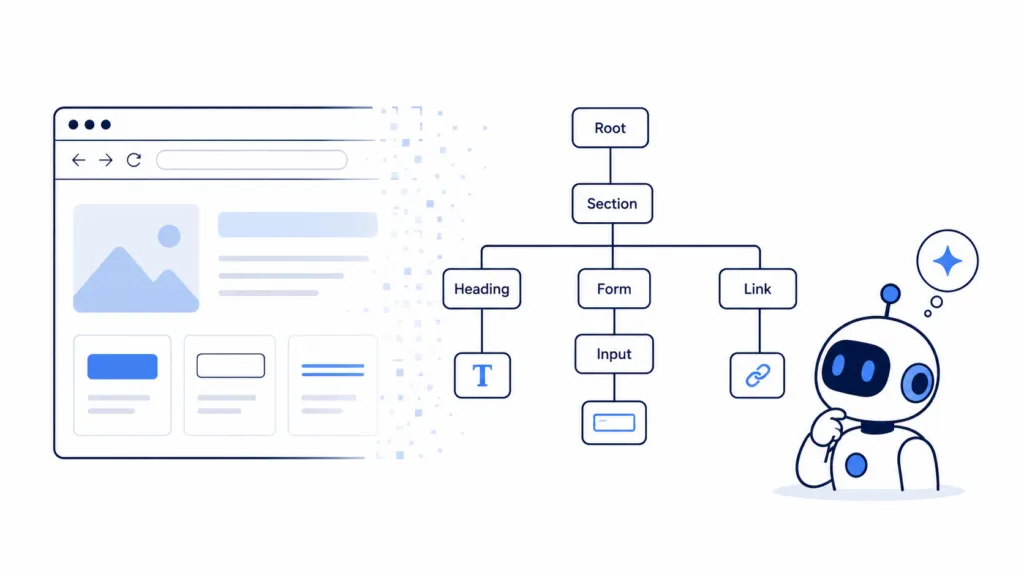
AI agents don’t see your website the way humans do. They don’t look at your colors, your layout, or your hero image. They read a stripped-down version of your page called the accessibility tree, and if they can’t make sense of it, they have to fall back to much slower methods.
At TJ Digital, we help small and medium-sized businesses optimize for AI search. Making your website usable for AI agents is a current concern, not a future one.
Very soon, most people aren’t going to be visiting your website at all. They’re going to send an AI agent to visit on their behalf. That means your website needs to work for machines, not just humans.
The good news is that most of what makes a site agent-friendly also makes it more accessible for people with disabilities. And you can use AI to do most of the work.
This article covers three layers that matter for AI agent usability. The accessibility tree is what agents read on every page, WebMCP is how they interact with your site’s tools, and llms.txt is how they find your most important content.
Table of Contents
ToggleHow Do AI Agents Browse Websites?
AI agents typically use what’s called a headless browser. This is just an internet browser without a graphical user interface, so there’s no screen, no mouse, and no visible window. The agent talks directly to the browser engine and gets back structured data about what’s on the page.
They do this because it’s much more efficient. An agent using a visual browser has to take a screenshot of the website, move a cursor, click, and then take another screenshot. Headless browsers skip all of that rendering and go straight to the content.
Now, there’s one caveat. Occasionally AI agents will use a browser the same way a human would. When you hear terms like “computer use” or “browser use,” that’s the agent opening a browser on a computer and looking at it visually.
This used to be the only way agents could operate. But now they only do it when they have to, usually because the website owner hasn’t made their site machine-readable.
Headless browsers read something called the accessibility tree. This is a structured representation of everything on the page, including headings, paragraph text, images, buttons, forms, and the labels on those elements. It’s the same thing that screen readers use to help people with visual impairments browse the web.
@tjrobertson52 how to make your website AI agent friendly: agents read your accessibility tree, not your design #AIAgents #WebAccessibility #AISearch
♬ original sound – TJ Robertson – TJ Robertson
What Is the Accessibility Tree?
The accessibility tree is created automatically by the browser based on the HTML of your page. You don’t have to build it separately. The browser reads your HTML, your CSS, and any ARIA attributes, then generates a semantic summary of what’s on the page and what can be interacted with.
The HTML of your page determines the quality of the accessibility tree. If your HTML isn’t structured and labeled correctly, the accessibility tree won’t be either.
A button coded as a <div> with an onclick handler won’t show up as a button in the tree. A form field without a label won’t have a name the agent can read. An image without alt text is invisible.
Think of it this way. A well-built page might produce an accessibility tree that looks something like this:
- heading “Your basket” (level 1)
- link “Noise-cancelling headphones”
- spinbutton “Quantity” (value: 1)
- button “Remove Noise-cancelling headphones”
- text “Total £129”
- button “Proceed to checkout”
Every element has a clear role and a descriptive name. An AI agent can read this and immediately understand what’s on the page and what actions are available.
A poorly built page, on the other hand, might produce this:
- generic
- text “Your basket”
- generic
- generic
- text “1”
- generic
- text “£129”
- generic
The agent has no idea what’s clickable, what the numbers mean, or how to take any action. It would have to fall back to taking screenshots and guessing, which is slower and less reliable.
How to View Your Own Accessibility Tree
You can check your accessibility tree right now. Open any page of your website in Chrome, right-click, and choose Inspect to open dev tools. Select the Accessibility tab and enable the full accessibility tree view.
What you’ll see is exactly what an AI agent sees when it uses a headless browser to visit your page. Go through the tree and ask yourself whether you can tell what every element does just by reading it. If a button doesn’t have a name, or a form field doesn’t have a label, that’s a problem for both AI agents and people using screen readers.
What Makes a Good Accessibility Tree?
The rules are well-documented and have existed for years through web accessibility standards. The biggest items to check are:
- Interactive elements need correct roles. Use <button> for actions, <a href> for navigation, and standard <input>, <select>, and <textarea> controls. Don’t make a <div> look like a button with CSS. The browser won’t know it’s a button, and neither will the agent.
- Controls need useful names. A magnifying glass icon used as a search button needs a machine-readable name like “Search.” Form fields need associated labels. Links should communicate where they go.
- Visible text and accessible names should match. If a button says “Book room” on screen but its accessible name is “Submit reservation form number two,” both humans using voice controls and AI agents will struggle to use it.
- Dynamic state must be represented. If a section expands and collapses, the button controlling it should expose whether it’s currently expanded or collapsed using attributes like aria-expanded.
- Document structure should be semantic, not just visual. Headings should be headings. Lists should be lists. Table relationships should be in table markup. Don’t rely on font sizes and spacing to convey hierarchy.
Does Your Website Need WebMCP?
WebMCP addresses a problem that good accessibility alone can’t solve. Even with a perfect accessibility tree, an AI agent might know that your page has five fields and three buttons, but it still has to guess which sequence of clicks accomplishes a business-level goal.
WebMCP is a proposed web standard that lets your website expose structured tools directly to AI agents. Your website can declare an entire operation and its parameters in a single call, so the agent doesn’t have to fill out a form field by field.
Consider a travel booking site. Without WebMCP, an agent trying to search for hotels would need to find the destination input, click it, type a city name, find the date picker, navigate to the right month, pick a day, repeat for the checkout date, find the guest selector, increment the number of adults, find the search button, click it, and then wait for results. That’s a lot of steps where things can go wrong.
With WebMCP, the site can expose a structured operation where the agent just provides the destination, check-in date, check-out date, and number of guests in a single request. The website handles everything else.
When WebMCP Makes Sense
WebMCP is most useful for operations that are hard to accomplish through simple form filling:
- Product search with multiple filters
- Booking or reservation systems
- Order status lookups
- Quote calculators
- Account management actions
It’s less necessary for simple pages with a single contact form or a basic search bar. For those, a well-labeled HTML form works just fine.
How Widely Is WebMCP Supported?
WebMCP is a proposed standard, not a universally supported one. Chrome has an origin trial starting with Chrome 149, and there’s a browser flag for local testing. It’s not like standard HTML form controls that work everywhere.
There’s also a ChatGPT compatibility issue. ChatGPT’s built-in browser currently supports only a subset of WebMCP, and declarative form attributes aren’t supported yet. If you’re building for ChatGPT compatibility, you’ll need to use JavaScript registration on the main page for now.
The smart approach is to build your forms to be accessible first, then layer WebMCP on top as progressive enhancement. The underlying form still needs to work for humans, screen readers, and agents that don’t support WebMCP.
What Does llms.txt Do for AI Agents?
The accessibility tree tells an agent what’s on the page it’s currently viewing. WebMCP tells it what actions it can take. llms.txt solves a different problem by telling agents where to find your most important content across the entire site.
llms.txt is a small Markdown file that you place at the root of your website (yourdomain.com/llms.txt). It gives AI agents a concise description of your site and links to your most important pages, ideally in Markdown format so agents can read them efficiently.
Think of it as a curated map of your website specifically for AI. Your sitemap tells search engines about every URL. Your llms.txt file tells AI agents which pages actually matter and what they’ll find there.
A basic llms.txt file might look something like this:
# Your Business Name
> One-line description of what your business does.
## Products and Services
– [Service Overview](/services.md): What we offer and pricing
– [How It Works](/process.md): Our process from start to finish
## Policies
– [Cancellation Policy](/policies/cancellations.md): Refund rules
– [Accessibility](/accessibility.md): Accessibility features
## Support
– [Contact](/contact.md): How to reach us
What llms.txt Won’t Do
llms.txt won’t help your search rankings. Google Search doesn’t use llms.txt for ranking or for its generative AI features.
Google’s AI agents, and all AI agents, can still use llms.txt when they visit your website to find information or complete tasks on behalf of a user. So adding an llms.txt file won’t move your search rankings, but it will help AI agents find the right content on your site when they visit.
It’s also not an access-control mechanism. An llms.txt file can’t prevent bots from crawling your site or force them to read specific pages. It’s a recommendation, not a directive.
Does Your Site Need One?
If you have a documentation-heavy site, a SaaS product, or a knowledge-rich business website, llms.txt is a low-cost addition that can help agents find the right information faster. It pairs well with newer standards like Google’s Open Knowledge Format for internal documentation. For a simple five-page business website, it’s probably not worth the effort.
The priority should always be accessible HTML first. If your accessibility tree is a mess, adding an llms.txt file on top is like giving someone a map to a building where none of the doors are labeled.
How to Run an AI Accessibility Audit on Your Website
Here’s the part that should make all of this feel manageable. You don’t have to manually check every element on every page. You can use AI to do the audit for you.
Go to Claude or ChatGPT and make sure you’re using the smartest model available. Give it a page from your website (I recommend starting with your homepage) and say, “Perform an AI accessibility audit on my website.”
That instruction alone should get you a solid audit. But if you want to be thorough, try this:
- Use a headless browser to view this page
- Review the accessibility tree
- Tell me how I could better integrate WebMCP
- Create an llms.txt file for me
Both Claude and ChatGPT have browser-connected tools that can inspect your live website, run Lighthouse accessibility checks, and test whether an agent can actually complete key actions on your pages. This is more reliable than just pasting your HTML into a chat window, because it catches problems that only appear after JavaScript executes and the browser computes the final accessibility tree.
How Do You Fix the Issues the Audit Finds?
If your website platform gives AI direct access to your code (some newer platforms are starting to do this), you could tell the AI to go ahead and fix everything it found. Otherwise, someone on your team will need to block off an afternoon, or maybe a couple of days depending on the size of your site, to implement the fixes.
The fixes themselves are usually straightforward. Replace <div> buttons with real <button> elements, add labels to form fields, add alt text to images, and use heading tags in the correct order. These are the same fixes that improve the experience for every visitor, not just AI agents.
What Should You Fix First?
If you’re looking at this list of three layers and feeling overwhelmed, here’s the priority order.
Start with semantic HTML and your accessibility tree. This has the broadest impact because it helps screen readers, traditional browser automation, and AI agents all at once. Use native HTML controls, accurate headings, associated form labels, meaningful link text, and exposed dynamic state. This is the foundation everything else builds on.
Audit the computed tree, not just the source code. What’s in your HTML file and what the browser actually produces can be different, especially if you’re using a JavaScript framework. Open Chrome DevTools and check the accessibility tree directly.
Test your most important user journeys. Search, contact forms, checkout, booking, account login. These are the flows where an AI agent failing has real business consequences. If an agent can’t complete a purchase or submit an inquiry on behalf of a user, you’re losing leads.
Add WebMCP selectively for complex actions. If you have a booking system, quote calculator, or multi-step form that’s hard for agents to use through normal controls, WebMCP can make those workflows much more reliable. Keep the normal accessible form as a fallback.
Publish llms.txt when you have a real use case. For content-rich sites with lots of pages, llms.txt helps agents find the right content quickly. For small sites, it’s optional. Never add it expecting a ranking boost.
| Layer | What It Gives an AI Agent | Priority |
| Semantic HTML + Accessibility Tree | Roles, names, states, and discoverable controls on every page | Do this first. Works for all agents and assistive technology. |
| WebMCP | Explicit, machine-callable actions like search, booking, or checkout | Add selectively for complex workflows. Still experimental. |
| llms.txt | A curated map of your most important content and resources | Optional. Most useful for content-rich sites. No ranking benefit. |
Where Should You Start with AI Agent Optimization?
The accessibility tree, WebMCP, and llms.txt each solve a different problem. The accessibility tree tells agents what’s on the current page, WebMCP tells them which structured actions your site offers, and llms.txt tells them where your important content lives.
The best part is that the most impactful layer, the accessibility tree, is also the one that benefits every visitor to your site. Making your site work for AI agents and making it work for people with disabilities are largely the same effort.
For more foundational preparation, check out our guide to preparing your site for AI. And when you’re ready for a team that actually understands how AI interacts with websites, talk to TJ Digital about an AI optimization campaign. We’ll audit your site, fix the issues, and make sure your pages work for both human visitors and the AI agents that are increasingly visiting on their behalf.