
The UCP integration hub is a new section of Google Merchant Center where online stores get set up to sell their products directly inside Google’s AI Mode and Gemini. The hub is for stores that support the Universal Commerce Protocol (UCP). A store supports UCP when its website is set up so AI Mode or Gemini can put together a cart or place an order with that store for a shopper.
If you run an online store and haven’t set up UCP on your website yet, now’s the time. And if you have, good news: it’s about to pay off.
If your store is on Shopify, Shopify has probably already set up UCP for you. At TJ Digital, we do SEO and GEO, and when we build an online store for a client, we build it on Shopify.
On other platforms, you set up UCP on your website and then fill out Google’s interest form. Google reviews each store’s setup before shoppers can buy from it in AI Mode and Gemini. The hub is rolling out in the US now, with Canada and Australia to follow next year.
Where is the UCP integration hub in Merchant Center?
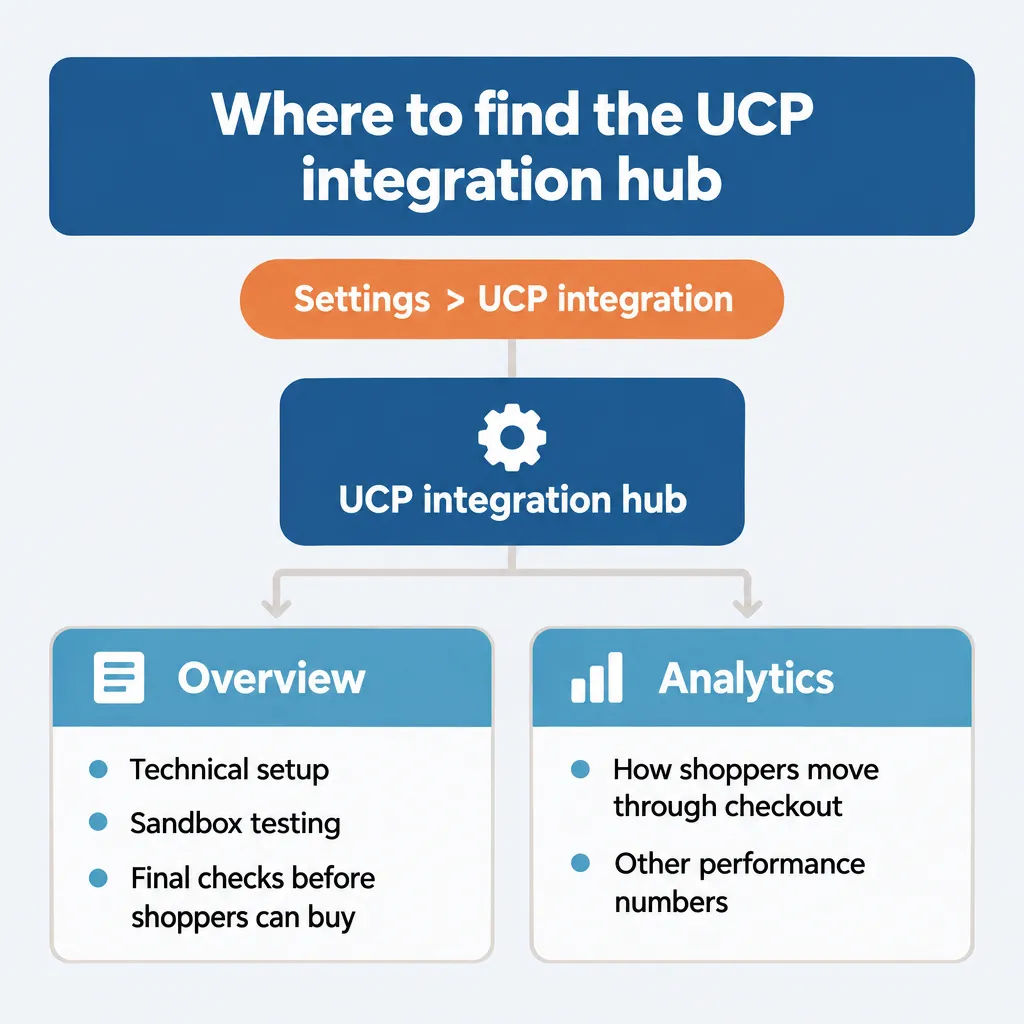
The UCP integration hub is under Settings > UCP integration in Google Merchant Center.
The hub has two tabs. Overview is where you do the setup: technical setup, testing in a sandbox (a test environment where nothing is sold for real) and the final checks before shoppers can buy. Analytics shows how shoppers move through checkout in AI Mode and Gemini, from starting a purchase to completing it, along with other performance numbers.
What is UCP (the Universal Commerce Protocol)?
UCP is an open standard that gives AI tools a common way to shop on online stores for a shopper: find products, build a cart and check out. Google announced it in January 2026 and co-developed it with Shopify, Etsy, Wayfair, Target and Walmart. It’s open source.
Once your store supports UCP, any AI platform that also supports UCP can sell your products to the people using it. On Google today, that means AI Mode and Gemini.
Your store tells AI tools what it can do through a profile. The profile is a small file at a standard address on your website: yourdomain.com/.well-known/ucp. AI tools read it to see what your store can handle, such as whether a shopper can pay without leaving the AI.
If you’re new to selling inside AI, I cover the basics in my guide on how to sell products on ChatGPT and Google AI.
How is UCP different from ChatGPT’s Agentic Commerce Protocol?
UCP and ChatGPT’s Agentic Commerce Protocol (ACP) are separate standards, and different AI platforms use them. As far as I know, ChatGPT is the only one using ACP. And as far as I know, all the other AI platforms that let you buy products directly through the AI are planning on using UCP.
I’m sure we’re going to see more and more AI platforms integrate UCP.
Why does the UCP integration hub matter now?
Until now, there hasn’t really been a big hurry to get UCP set up on your website. The rollout so far has been slow and mostly experimental.
The integration hub changes that. It gives stores a way to test their UCP setup with Google inside Merchant Center and get approved to sell in AI Mode and Gemini.
What’s the difference between cart transfer and native checkout?
Google gives stores two ways to sell through UCP: cart transfer, where the shopper pays on your website, and native checkout, where the shopper pays on Google without leaving AI Mode or Gemini.
| Cart transfer to your site | Native checkout on Google | |
| What the shopper does | Builds a cart in AI Mode or Gemini, then finishes checkout on your website | Taps Buy and pays with Google Pay, without leaving AI Mode or Gemini |
| What you set up in Merchant Center | A return policy, and product IDs that match the ones your site uses | A return policy, a customer support contact, and an attribute you set on each product you want shoppers to buy on Google |
| How payment works | Through your own checkout, as with any order on your site | Your payment processor has to accept Google Pay, and you need a Google Pay & Wallet Console account. You don’t need a Google Pay button on your own site. |
You can offer both. Cart transfer is the lighter of the two to set up.
Google also says in its UCP FAQ that choosing native checkout doesn’t influence how it ranks your offers in product listings.
Does my store qualify for the UCP integration hub?
Your store qualifies for the UCP integration hub if it sells products in the US and has a Merchant Center account in good standing, with products approved for free listings. You need both for cart transfer and for native checkout.
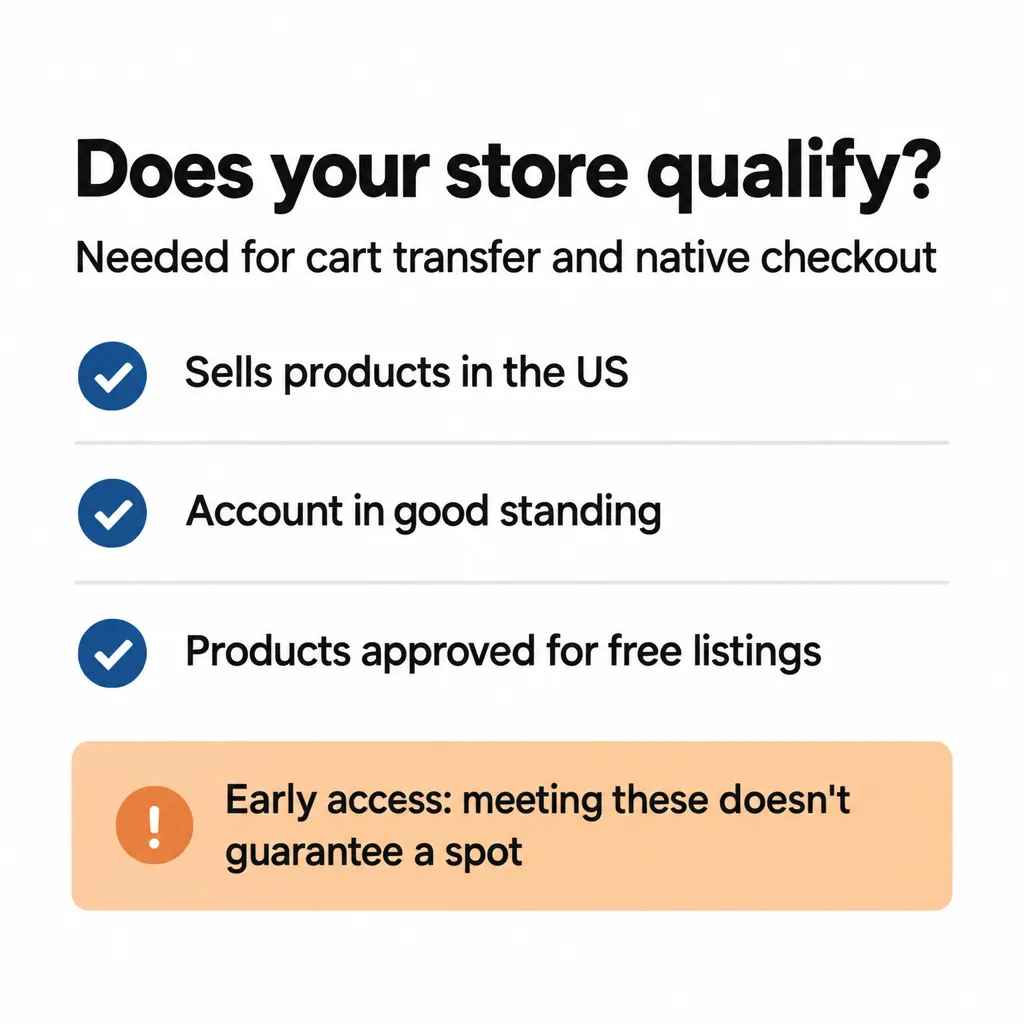
Meeting them doesn’t guarantee your store a spot. Google calls this an early access program for “select merchants,” which means Google chooses which stores to bring in from the ones that apply.
For native checkout, your products also have to be types Google allows in its checkout. The main ones that can’t use it are:
- Subscriptions and installment plans
- Personalized goods
- Used, refurbished or final-sale items
- Pre-orders
- Items that need freight or other special shipping
- Age-restricted products, such as alcohol and tobacco
- Services, rentals and virtual items
- Products bundled with services such as warranties or installation
I’m on Shopify. Do I need to do anything?
If your store is on Shopify, good news: native checkout in AI Mode and Gemini should already be set up for you automatically. Shopify’s name for native checkout is direct checkout. Shopify says direct checkout is “activated by default for eligible stores.”
Shopify turns it on for stores that meet these conditions:
- The store sells to customers in the US, Canada or Australia, and can be based anywhere.
- It has a valid Google Merchant Center account that meets Google’s requirements.
- Its products are in Merchant Center, through the Google & YouTube sales channel, a third-party feed or a manual upload.
- Its products are eligible for Shopify Catalog.
- You’ve agreed to Shopify’s Agentic Storefronts supplemental terms of service.
- Your terms of service, privacy policy, and return and refund policy are filled in under Settings > Policies.
Google also emailed Shopify merchants in September 2026 to tell them native checkout had been turned on for their stores. The email said, “There’s nothing for you to set up.“
To see whether it’s on in your store, go to Sales channels > Agentic in your Shopify admin. Shopify notes that direct checkout “might not yet be available” in every store while it rolls out.
Before you decide whether to keep it on, know that direct checkout sales won’t show up in Google Analytics or in tracking you’ve added through custom pixels. You’ll find them in your Shopify admin instead, tagged with the channel they came from. Direct checkout also doesn’t support subscriptions, product bundles, customizable products, or local delivery and pickup.
If you’d rather send shoppers to your own site to buy, you can turn direct checkout off:
- In your Shopify admin, go to Sales channels > Agentic.
- Switch off “Allow Shopify to manage for me.”
- Click Google AI Mode and Gemini.
- Turn off Direct checkout, then click Save.
Your products stay discoverable, and shoppers who want to buy them get sent to your online store.
How do I check whether my store already has UCP?
If you’re not sure whether UCP is set up on your website, I recommend just googling “UCP checker” and using one of the free tools. You can also check by hand: open yourdomain.com/.well-known/ucp in your browser.
If you see a block of code describing your store, you have a UCP profile. If you get a “page not found” error, you don’t.
The free checkers are independent of Google. They check your profile against the UCP standard, so a pass tells you your profile follows it. A pass doesn’t mean Google has approved your store, because Google reviews each store itself before shoppers can buy from it.
How do I get onboarded to the UCP integration hub if I’m not on Shopify?
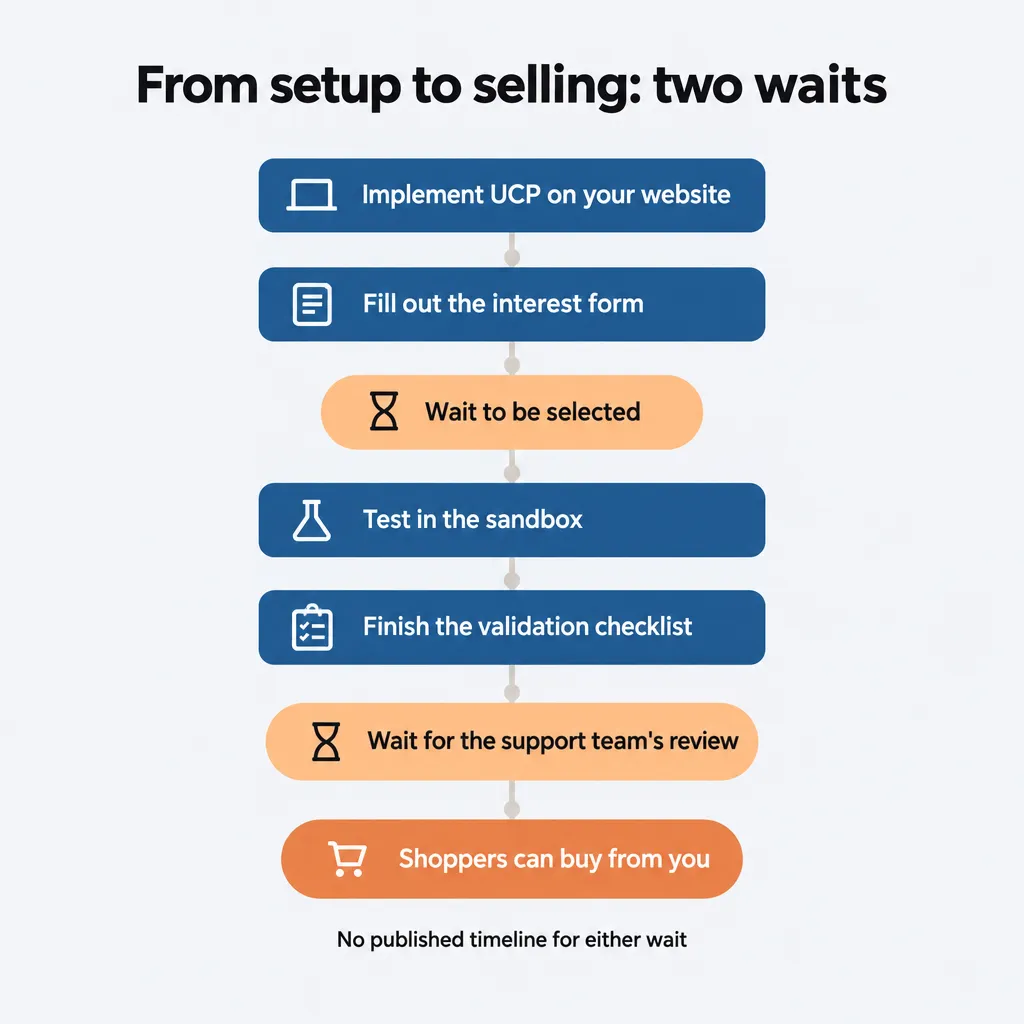
If you’re not on Shopify, getting onboarded means implementing UCP on your site, applying through Google’s interest form, and then testing your setup in the hub.
- Ask your platform whether it handles UCP. If your store runs on a commerce platform or uses a feed provider, Google’s advice is to ask them about their UCP plans. If they handle it, follow their steps in the order they give. Salesforce Commerce Cloud, for example, has its merchants fill out Google’s interest form (step 5) before implementing UCP (step 3). If you’re on WooCommerce, my guide to selling products on ChatGPT and Google AI walks through the setup.
- Get Merchant Center ready.
– Add your return policy, with your return cost, your return window and a link to the full policy. – For cart transfer, make sure the product IDs in Merchant Center match the ones your site uses. – For native checkout, add a customer support contact, such as a support page, email address or phone number. – Also for native checkout, mark each product shoppers can buy on Google by setting the attribute native_commerce(checkout_eligibility) to TRUE. If it’s FALSE or missing, that product “won’t be eligible for checkout.” Google recommends setting it in a supplemental feed, which adds attributes to the products already in your main feed.
If your feed needs work first, here’s how to set up your product feed for AI shopping.
- Implement UCP on your website. Google’s help page says this is “necessary before you begin onboarding.” Google has put out a guide you can follow, or, let’s be honest, Claude or ChatGPT can follow it for you. Either way, you publish your UCP profile. For cart transfer, your site also has to let Google create a cart on it. For native checkout, your site has to let Google start, update and complete a purchase for the shopper. Completing the purchase places the order with your store.
- Check your profile. Once it’s published, confirm it loads with a UCP checker.
- Fill out Google’s interest form. The UCP interest form asks for things like:
– Your Merchant Center account ID and website – How many active products you have in Merchant Center, in ranges from fewer than 1,000 to 10,000 or more – Your product categories – Which platform or integration provider you use – Whether you work with a Google sales rep – Your plan and the resources you’ll put toward implementing UCP
The form also has you commit to starting implementation within 30 days of being selected. Google warns that your early access “may be removed” if you don’t make progress. If you see Google’s developer guide mention a waitlist, it means this same form.
- Once you’re selected, test in the sandbox. Google tells you when your store has been selected. The hub’s setup tools and sandbox only appear in your Merchant Center account after that. In the sandbox, you test your profile and run practice carts and checkouts. Then you tell Google in the hub which option you built: cart transfer, native checkout or both.
- Finish the validation checklist. You give Google the address of your UCP profile. Your profile lists the options your store supports, such as cart transfer or native checkout. Those have to exactly match the options you chose in the hub. Google’s checklist in the hub then tests your Merchant Center settings and whether your cart or checkout works when Google uses it. For native checkout, you also agree to Google’s checkout terms.
- Wait for Google Support’s review. After the checklist, “the Google Support team reviews your UCP integration.” Google then tells you whether shoppers can start buying from you or what needs fixing.
How long does UCP approval take?
Google hasn’t published how long UCP approval takes. There are two waits: being selected after you send the interest form, and Google Support’s review after you finish the checklist. Google only says it will notify you as soon as you’re selected.
What does selling through UCP cost, and who handles the order?
I didn’t find any fee for selling through UCP in Google’s checkout terms or its UCP documentation, so as of now, there’s no Google fee I can point to. For Shopify stores, Shopify says, “You pay only your standard payment processing fees.”
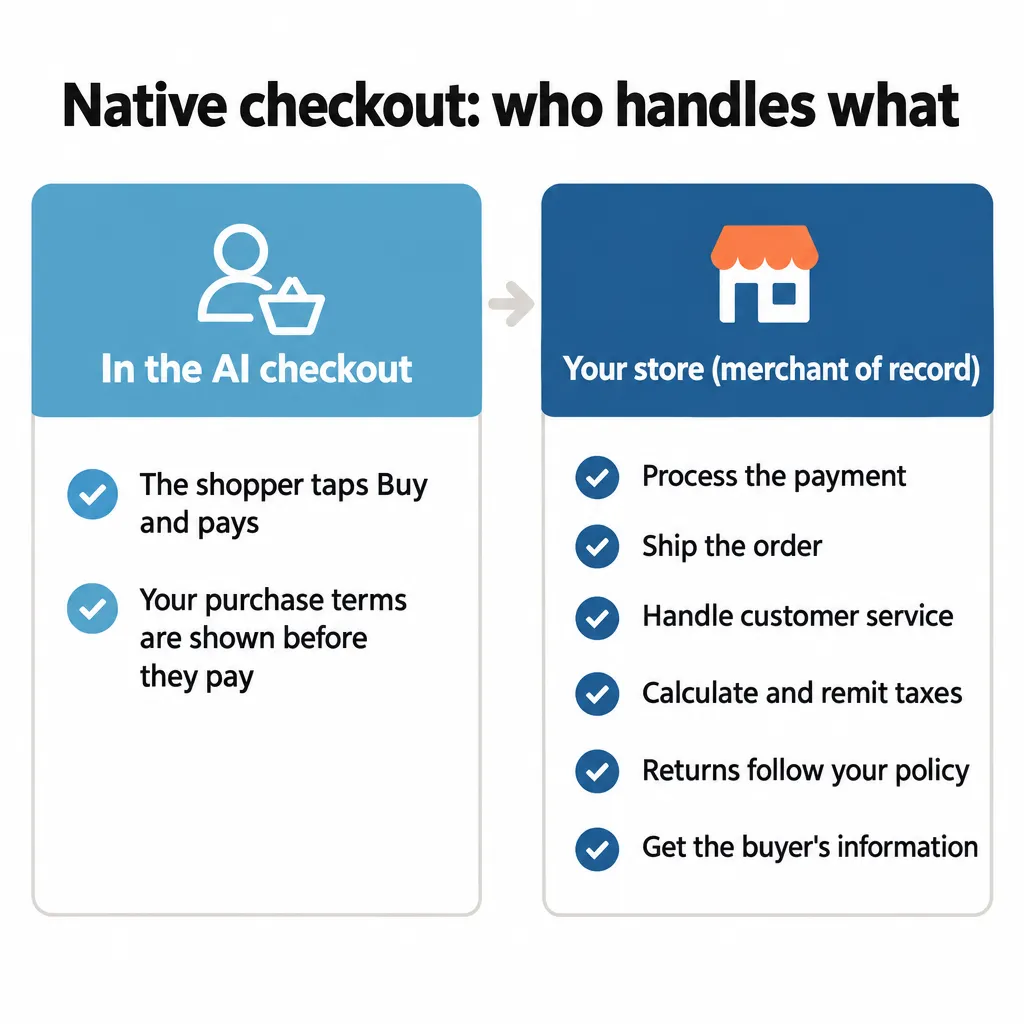
With native checkout, you’re the merchant of record, which means the sale is yours, just like an order placed on your own website. You process the payment, ship the order and handle customer service, the same as always. Taxes are on you too: Google’s checkout terms make you responsible for calculating and remitting them.
Google’s checkout shows the shopper your purchase terms, including your return and refund policies, before they pay. Those terms are the ones that apply to the sale, so returns follow your policy.
You also get the buyer’s information, as with any other order, and your usual privacy and consent rules apply to how you use it. Google’s UCP FAQ says you “retain full ownership of your customer relationships and data.”
Google says it plans to add a marketing email opt-in to its checkout. Once it does, its terms let you send marketing emails only to shoppers who opted in.
If you’re a client of mine, don’t worry, we’ll get this set up for you. If you’re not, and you have questions about UCP or getting your store ready for AI search, reach out through our contact page or email me at tj@tjrobertson.com.